





Tips Index
Tubechop is an online video cropping application designed to trim youtube videos through link pasting. Usually, people ask how to download a portion of a video without further opening an app just to trim it in which Tubechop perfectly addressed a solution to it. It’s not like a viewer would like to have the whole video, because sometimes people tend to go back to a specific portion of the video of whatever purpose it may serve, so it is essential to isolate that part. Reasons might be out of bare entertainment, lack of storage or just a short clip to be integrated into another clip. Tubechop’s agenda is actually to cut and isolate the portion where there are fun and entertainment or something that sparks interest in the viewer, more like a GIF but not as compressed. Tubechop produced videos can be shared on Facebook, Twitter, Pinterest, WhatsApp, Gmail, and LinkedIn.
Tubechop video downloaders like VideoPower RED are available to download your favorite Tubechop cropped video ready on the go. VideoPower RED is a powerful software that not only downloads several videos all over the web but also has extra amenities and functions that could deliver entertainment whenever or wherever you need.
You can try to use the software for free by downloading its trial version below.
Method 1: Copy and Paste
Step 1: Copy and Paste the URL and download
To start downloading videos, copy the link of the video that you need to download and launch VideoPower RED. Click the “Paste URL” button at the upper left most part of the “Download” section and video will be processed in the “Downloading” tab.

Step 2: Check the downloaded file
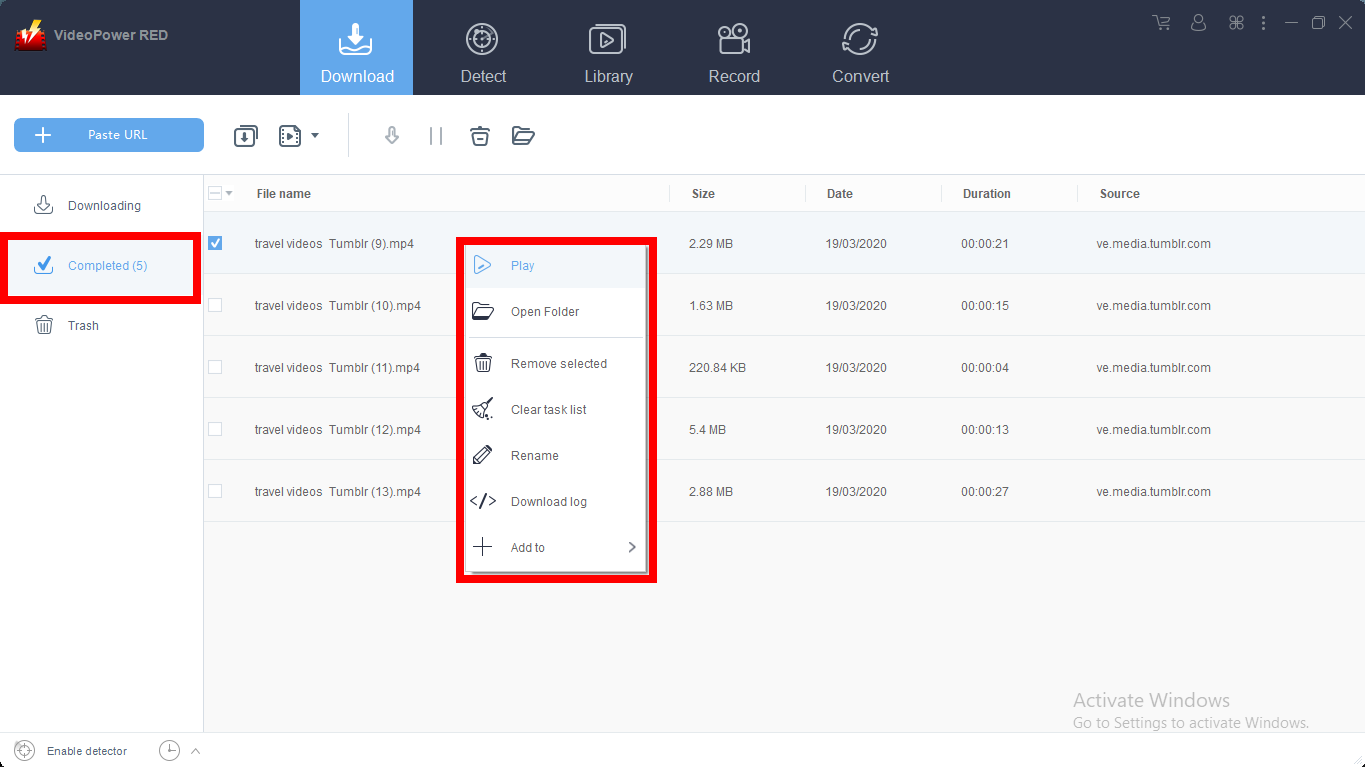
Go to the “Downloaded” tab to see and check the downloaded blog videos. Right-click the file if you want to do more operations like “Play” to watch the video playback.
Method 2: Auto-Detect (Embedded Detector)
Step 1: Open Video through an Embedded Detector
This embedded browser has an embedded detector that could analyze the video file on the browser and automatically download the video.
1) Open your preferred site and look for the video that you want to download.
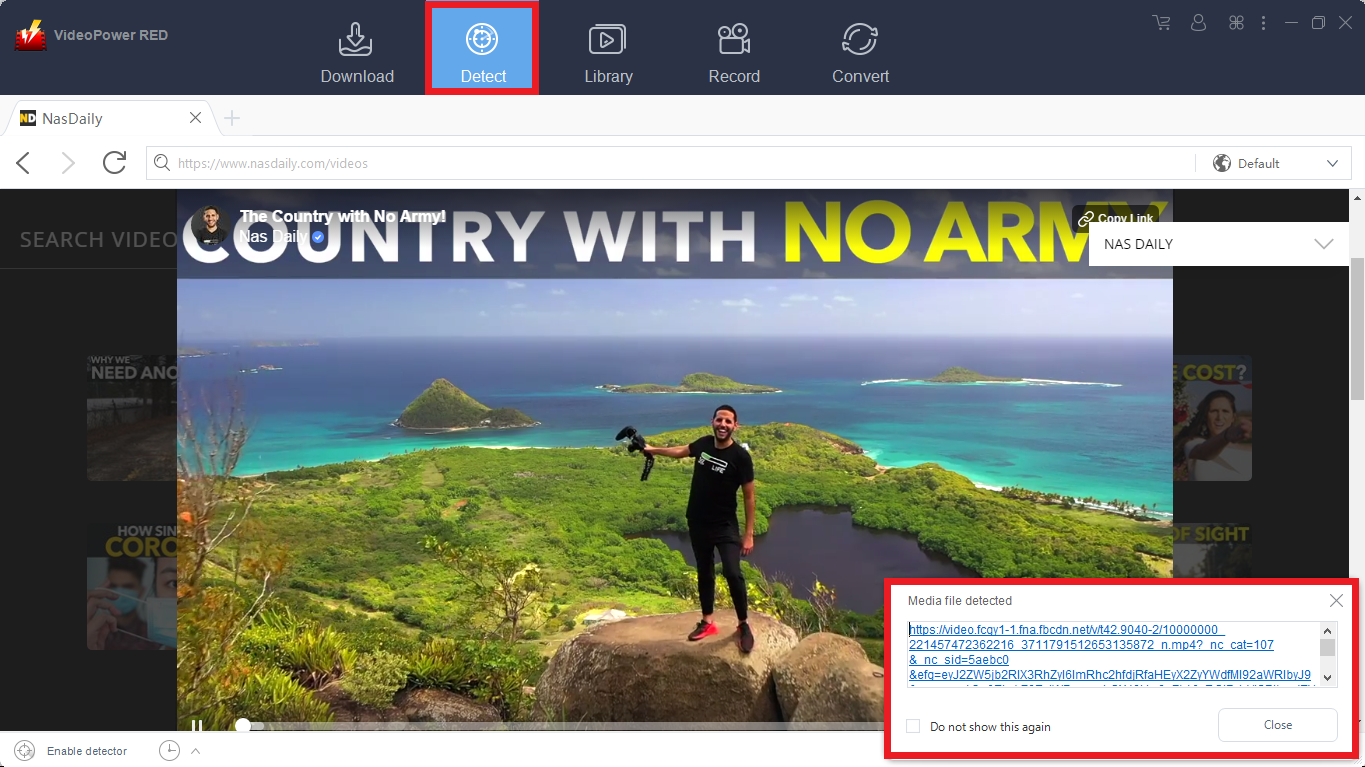
2) Play the video and a “Media File Detected” notice will appear to notify that the chosen file has been detected and will be downloaded automatically.
Step 2: Check Downloaded File
Go to the “Downloaded” tab to see and check the downloaded videos. Right-click the file if you want to do more operations like “Play” to watch the video playback.
Method 3: External Detector
Step 1: Activate the “Enable Advanced Detector” and start downloading
Activate the “Enable Advanced Detector” and start downloading.
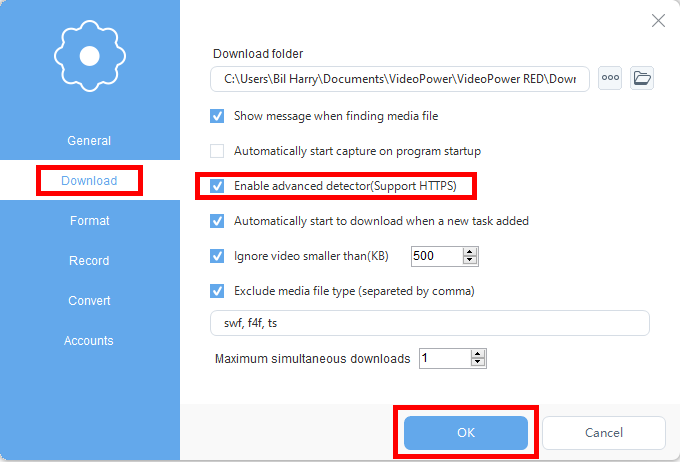
1) Click the settings menu bar on the upper-right corner of the interface and navigate to the “Download” tab.
2) Set “Enable Advanced Detector” on the download settings and click “OK”.
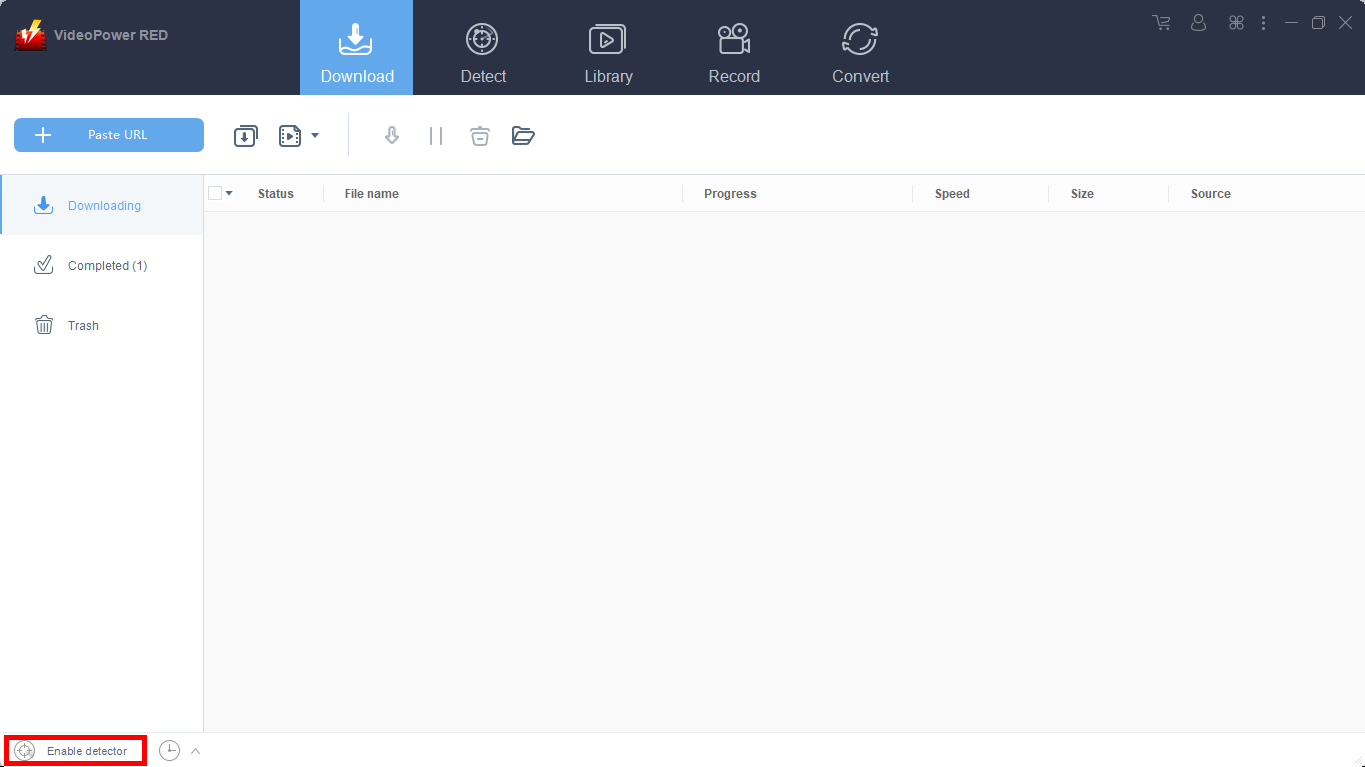
3) Enable the detector located on the lower-left corner of the software interface.
Now Open your preferred website to search for your preferred Video. And then play the video so it will be downloaded automatically.
Step 2: Check Downloaded File
Go to the “Downloaded” tab to see and check the downloaded videos. Right-click the file if you want to do more operations like “Play” to watch the video playback.
Method 4: Screen Record
Note: This method is best for protected video files and for a slow internet connection.
Step 1: Choose a recording mode
Click on the “Record” tool to select your display recording option for your online meeting.
Full Screen:
The recording area will be the whole screen of the computer.
Region:
The recording area will only be a specific area of the computer screen.
Audio only:
Select “Only Audio” to record the audio-only.
You can save your files like MP3, AAC, OGG, WMA, WAV, FLAC, and other file formats.
Web camera:
Select this option to record video from an external webcam or a built-in laptop camera.
Around mouse cursor:
The mouse position is the center of the recording range. If you move the mouse during recording, the recording range will follow the movement of the mouse.
Since we are recording a video, options like “fullscreen” or “region” can be selected. Select the option you prefer and the recording will automatically start.

Step 2: Recorded File List
Recorded videos are displayed in the Record section. Right-click the recorded file and do more operations if necessary.

Conclusion:
VideoPower RED delivers more than just your usual Tubechop video downloader, it can actually surf all over the web and can download any video which is played in the interface’s built-in web browser which sometimes users are having a hard time trying to figure it out to download. VideoPower RED also has amazing features which you can use for other tasks like editing videos and conversion of video and audio to an array of varying formats. Try it now!


