





Tips Index
There’s a lot of popular music streaming services that everyone is familiar with, it’s Spotify and Apple Music. Some other popular music radio sites provide massive free music tracks as well, such as Pandora.
Pandora is one of the biggest online music radios, streaming music, and automated music recommendation services accessible through a web browser or mobile app.
Like the other major streaming music sites, Pandora also offers different types of memberships for subscribers, but the bottom line is users have to pay for a monthly subscription to enjoy more features.
To record music from Pandora for offline listening, we suggest taking advantage of some third-party tools like the Pandora music downloader. Here we are putting together two most popular ways for you to easily download Pandora playlist for offline playback.
One of the best third-party tools to record Pandora music is VideoPower YELLOW as it is a multi-functional music downloader and streaming audio recorder designed to excellently download Pandora music.
This tool is a music downloader and sound recorder that you can use to save any kind of music on your PC. That means recording music on Pandora will be an easy task for this tool. In just one click, users can start recording music, which can save time and effort on.
For this, the Pandora downloader is simple to understand and use. Though you have to stream Pandora through PC for it to work.
For more understanding on how to record Pandora music with VideoPower YELLOW, keep on reading below to see the steps on how to use this tool.
Record Music from Pandora
Step 1: Launch Pandora
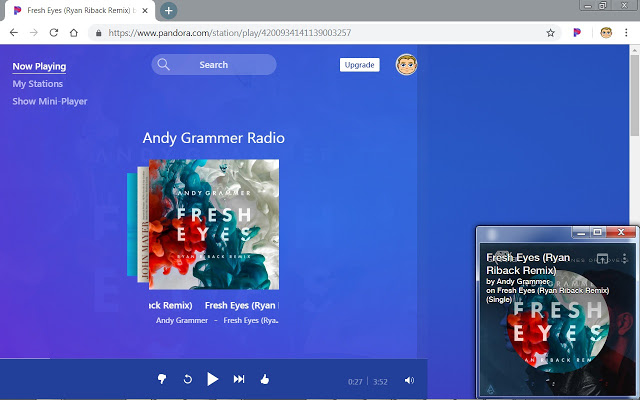
Launch Pandora on your web browser, and open up the music, album, or playlist you want to record.
Step 2: Set Sound Source
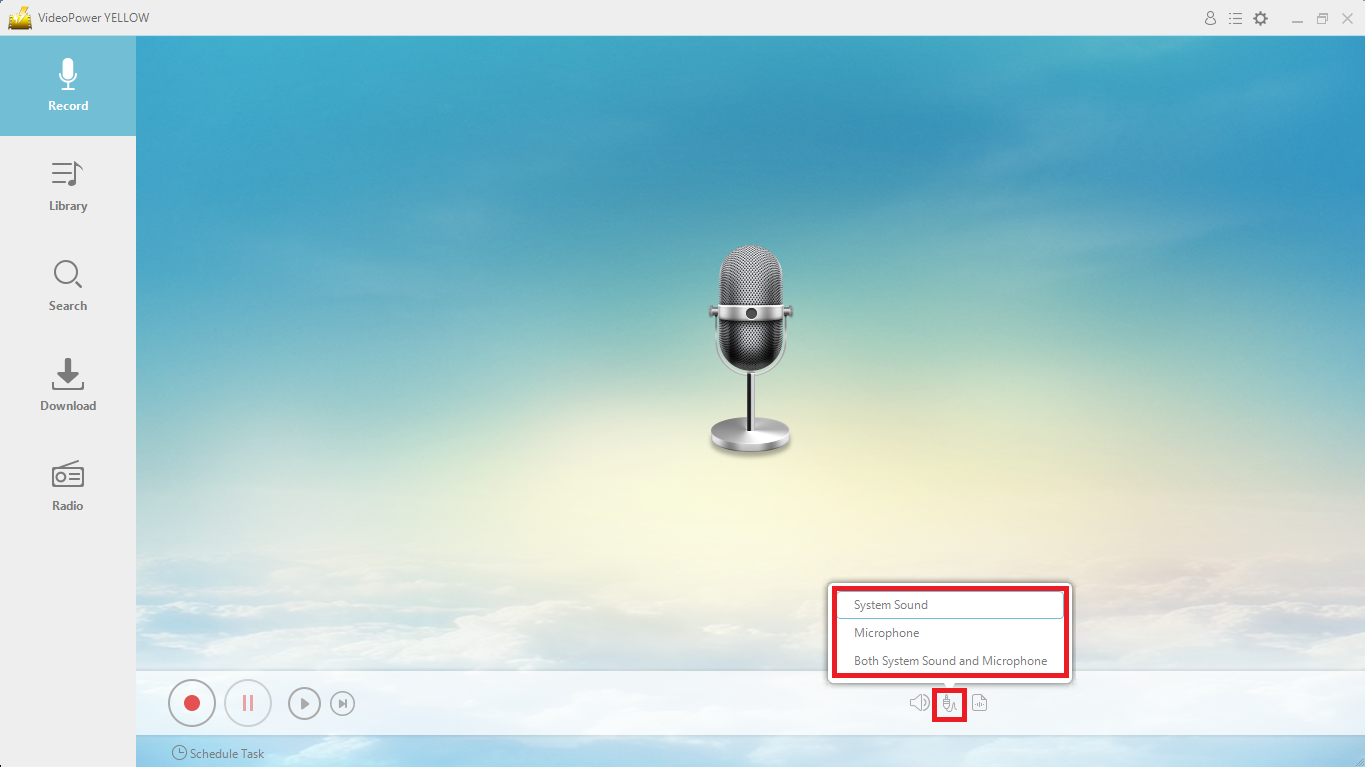
Launch the program and it will automatically direct you into the record interface. To record audio streaming on the PC, make sure that the sound resource you chose is “System Sound”.
Step 3: Set Format
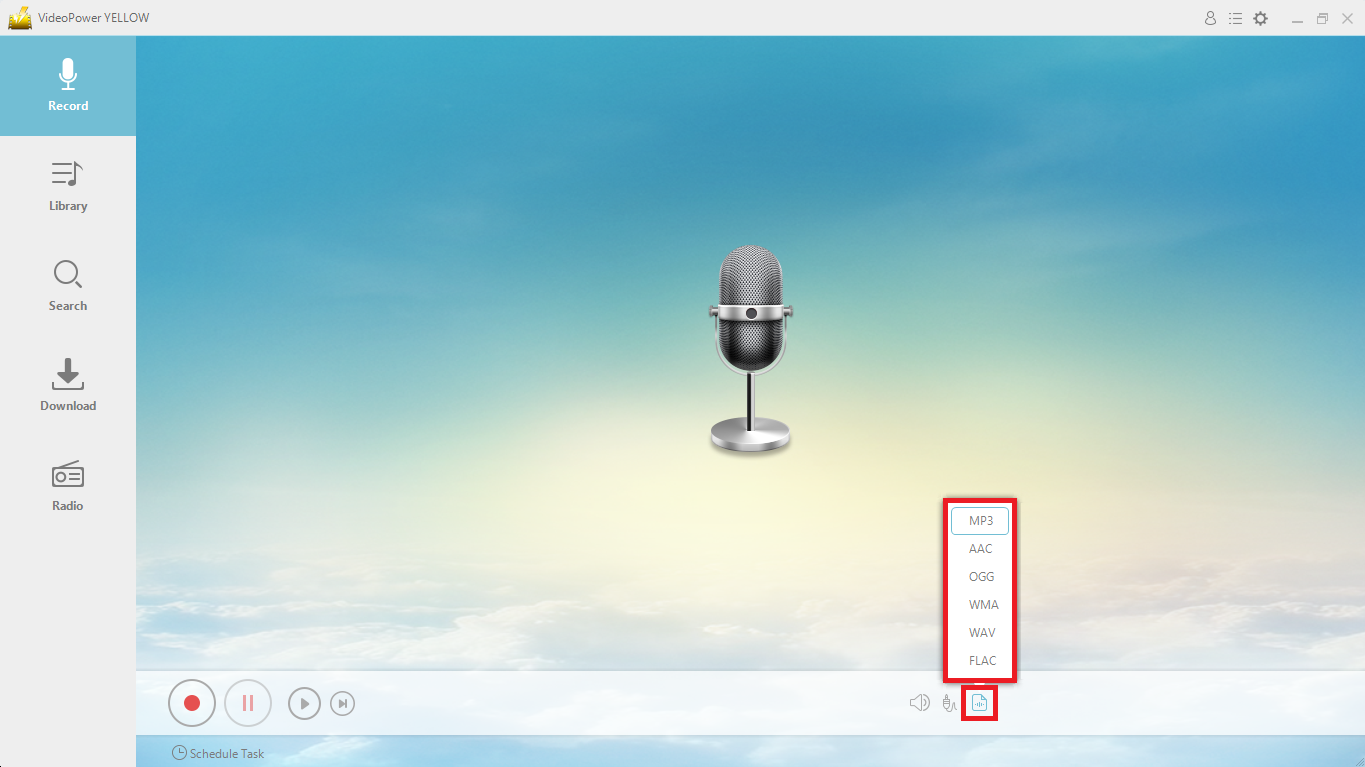
The default recording format is in “MP3” and if you wish to change it then click “Format” and choose.
Note: This is optional. Users may not change or change the file format according to their preferences.
Step 4: Start recording Music from Pandora
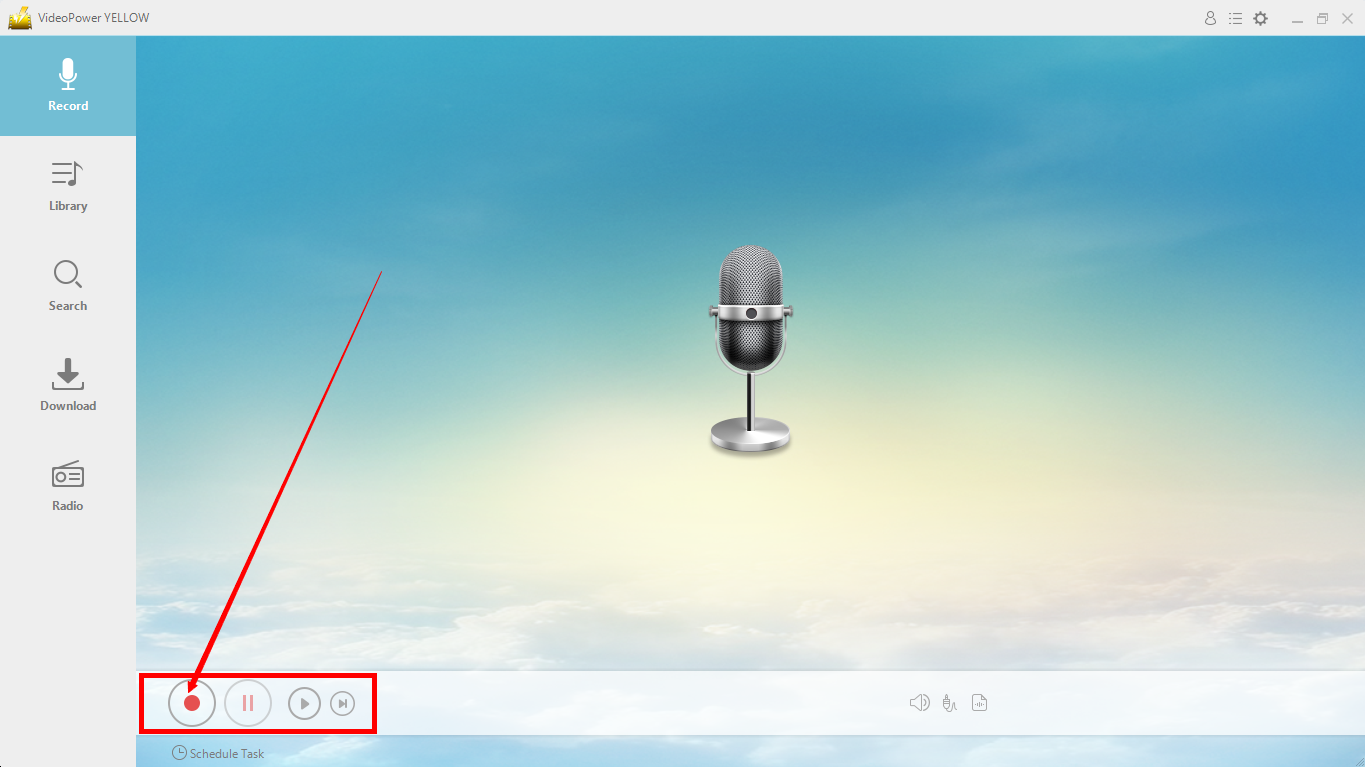
Playback the music in Pandora and to start recording, click the recording button at the bottom left of the screen. Click the same button if you wish to end the recording and for the recorded file to be saved successfully.
Step 5: Open the folder storage
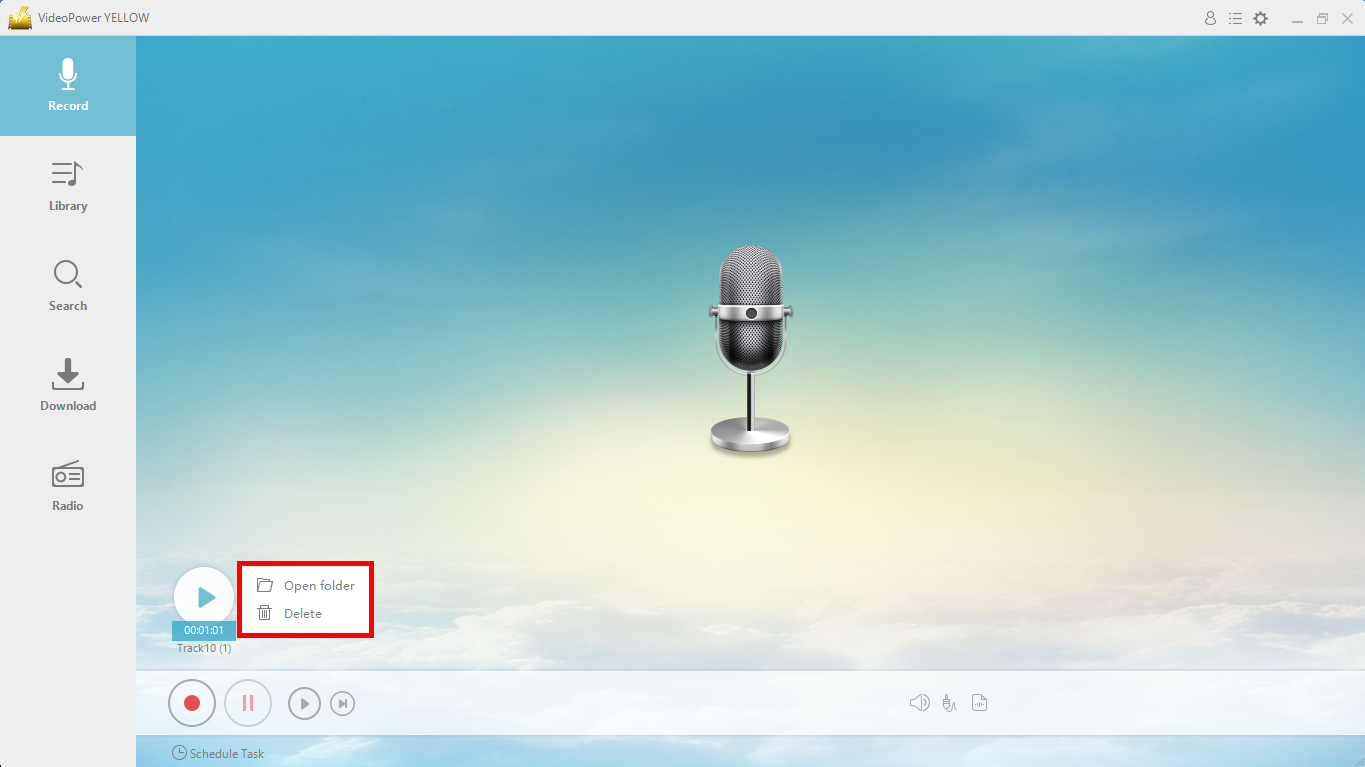
To open the storage folder location of the recorded audio file, right-click the recorded track icon and click “Open folder”.
Conclusion:
Only VideoPower YELLOW makes it that easy to record and download music from the internet. This process is not just limited to record Pandora music but can be used on countless other sources as well.
This software lets you download your music entertainment from your choice of websites. After downloading your music, you can listen to it on your computer right away, convert the files into any desired format or transfer them to your portable devices so that you can enjoy your music wherever you are.
Also, you can set the audio source from system sound to external microphone, or both. Furthermore, this tool allows you to organize its library by ID3 tags, which means you can edit the title, album name, year, etc.


