





Tips Index
People can easily shoot videos with their portable devices like smartphones, digital cameras, and even screen capture programs. For sure sometimes the video they took is in a very large size which may cause problems of uploading to YouTube and sharing with others.
If you want to trim unwanted parts and delete it in order to make the large video smaller, you have to turn to a professional video cutter software for help.
I would like to introduce the best video cutting program – VideoPower BLUE, which lets you cut parts of a video within a few clicks while preserving the original video quality.
VideoPower BLUE is one of the best video cutting software out there. Many functions such as video and screen recording, video and music conversion and editing, video collage, slideshow creation are integrated.
This video cutting software enables you:
– Convert any video/audio format to a different format.
– Multi-functional video editor, which allows you to trim and crop parts, merge several video clips into one, add effects, add subtitles, add watermark, etc.
– Split-screen of your videos, which make several videos playing on one screen at the same time.
– Record screen activities on your PC.
– Make MV with your beautiful pictures.
Here is a simple tutorial to show you how to use this utility for cutting videos.
Step 1: Import files to VideoPower BLUE
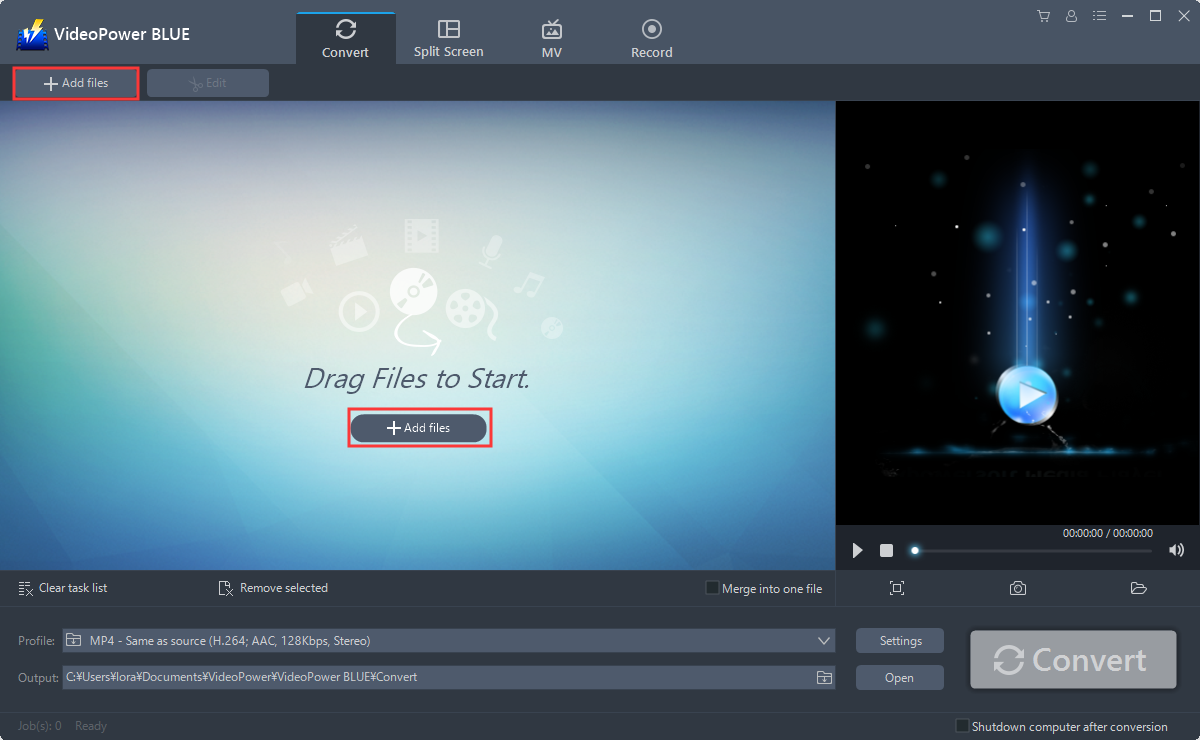
Launch the video editor program and click “Add files” or drag and drop a file to the interface.
Step 2: Edit imported video
2.1 Open Editing Window
Click the “Edit” button at the right side of the added video to open the Edit window so you can make modifications or changes to your video.

2.2 Trim Video
To trim your video, just follow the steps below:
1) Click “Add Trim Marker” to add a trim marker to the video bar. You can add multiple trim markers.
2) Drag the slider to select the part you want to hold.
3) You can click the up or down button to set the start and end time for the video as well.
4) Now you can choose to keep or delete the selected section.

2.3 Adjust video size or position
To adjust your video, just follow the steps below:
1) Rotate your video position
2) Crop video screen size
3) Synchronize the video and audio

2.4 Add or change effects
To change some effects of your video, just follow the steps below:
1) Speed – you can change the tempo of your video.
2) Volume – you can change the sound level of your video.
3) Contrast – you can adjust the color.
4) Brightness – you can adjust the lightness or darkness of the video.
5) Saturation – you can adjust the color intensity of the video.

2.5 Add Watermark
To add a watermark on the video:
1) Click the “Watermark” icon.
2) Add text, logo, or image as a watermark.

2.6 Add Subtitle
To add subtitles for the video, you can import external subtitles or search subtitles on the internet. Please refer to another article about “How to edit the subtitle file.”
1) Click the “Subtitle” icon
2) Click “Search box.” (You can either click a subtitle saved on your computer or find it online).

Step 3: Merge and Convert Video File
3.1 Merge Video
You can combine multiple video clips and save as one long video.

3.2 Convert Video
When all is done with the editing, click the big blue “Convert” button to start the conversion process.
A pop-up window from the program will appear informing you that the conversion is complete. The software will convert your video to MP4 format by default. Click “OK” to open the folder of your saved converted files.

With these steps, you can now edit your videos efficiently and convert your files to the desired format.
Conclusion:
VideoPower BLUE is a multi-faceted software with easy to use interface and fast conversion speed that allows batch conversion. Convert videos to formats that work on your mobile phone, tablet, TV media player, game console, computer, or web browser.
This software provides you various features such as recording, video editing which includes trimming, rotating, adjusting the resolution, speed, volume, brightness, adding subtitles and a lot more, with all of these features, VideoPower BLUE is the best video cutting software.


