





Tips Index
GoPro, Inc. is an American technology company founded in 2002 and it manufactures action cameras, thus the “GoPro Camera”. It’s a small camera that takes the best qualities of footage on camcorders and packs them into a sturdy frame, smaller than a regular camera, waterproof, and almost indestructible because it’s shockproof.
It is widely used by extreme sports groups such as surfing, skiing, extreme cycling, and skydiving. Thus, “GoPro” is almost synonymous with “extreme sports-only camera”.
You might have a lot of amazing GoPro footage sitting on the memory card after an exciting vacation and want to share them with someone you know? Or maybe post it on social media?
Are you seeking for a Video Editor that will enhance your video shoots and photos, and make them fancier, making it like a pro?
The best and easiest GoPro Video Editor is here, just a few clicks away with VideoPower BLUE.
This GoPro Video Editor enables you to:
– Convert any video/audio format.
– Multi-functional video editor, which lets you trim and crop parts, merge several video clips into one, add effects, add subtitle, add watermark, etc.
– Split Screen your videos.
– Record screen activities on your PC.
– Make MV with your beautiful pictures.
Here is a simple tutorial to show you how to use this utility for editing GoPro videos.
You can try to use the software for free by downloading its trial version below.
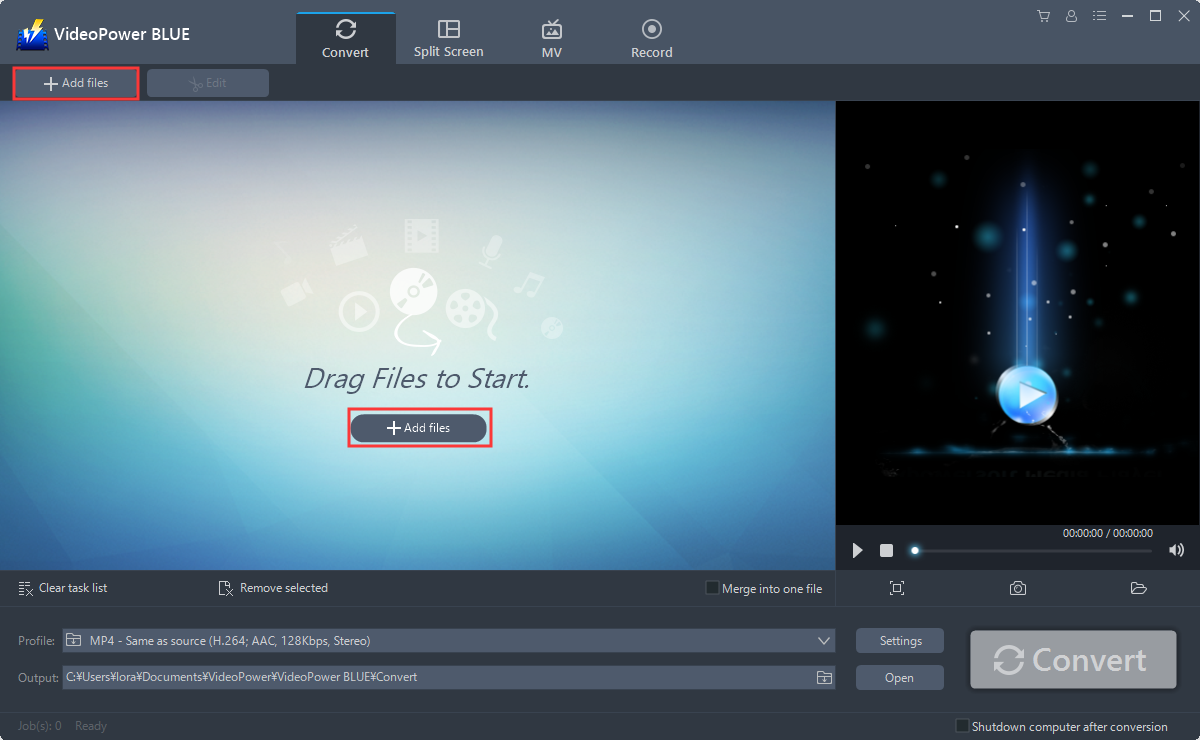
Step 1: Add the preferred GoPro video file to VideoPower BLUE.
After you have installed the software on your computer, it will launch automatically. You can directly import the file to the program by clicking the “Add files” button or by drag-and-drop the file to the interface.
Step 2: Edit GoPro video file.
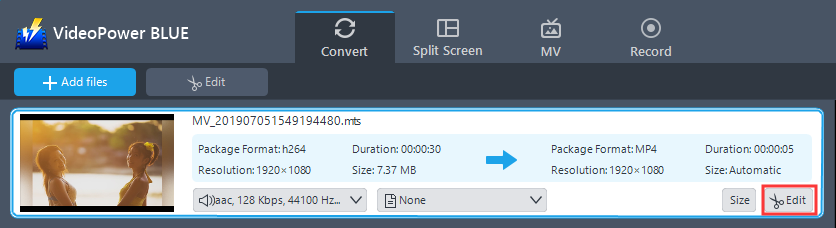
2.1 Open Editing Window
The imported file is displayed in the list. Click the “Edit” button on the right side of the file.
2.2 Start Editing
The built-in video editor will pop up, with its help, you can make the perfect movie. Adjust speed and volume, trim, cut, crop, rotate or flip videos. Add effects, subtitles and watermark while adjusting brightness, contrast and saturation that will make editing conveniently easier.
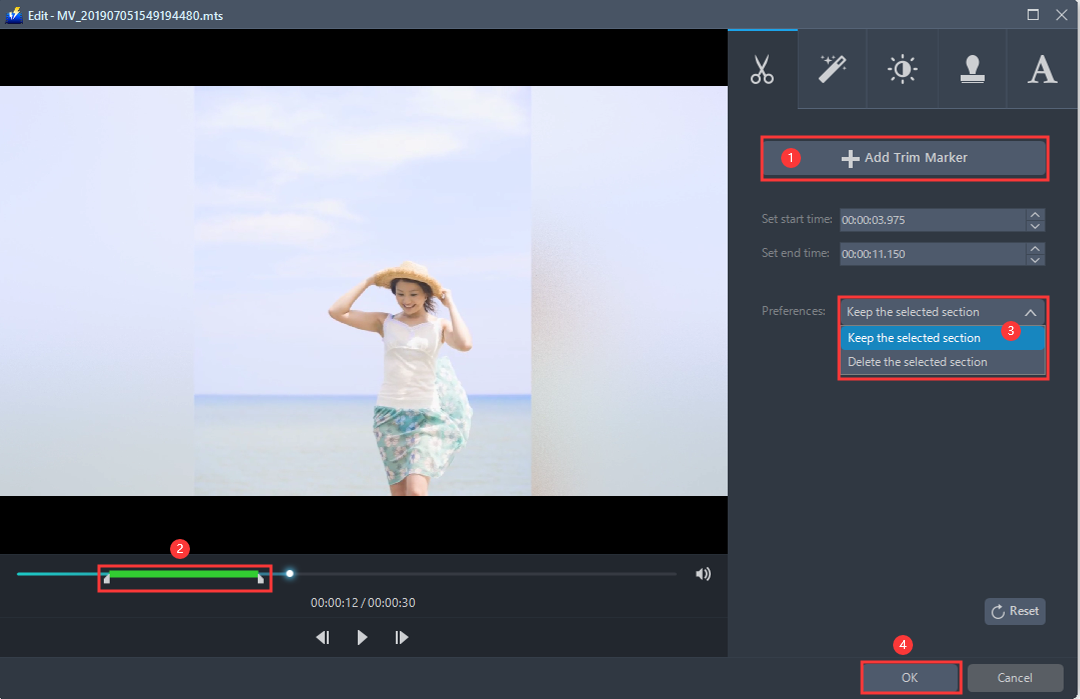
For example, you can trim your video as showing below:
1) Click “Add Trim Marker”.
2) Drag the mark as shown below to select the part you want to cut.
If you want to select multi-sections, please repeat 1 and 2.
3) Choose “Keep the selected section” or “Delete the selected section” from “Preferences”.
4) Click “OK” to save the setting.
Step 3: Convert the file to any format.
3.1 Set the output format.
1) Click to open the “Profile” drop-down menu, then choose the format you want from the profile list.
2) Here you can click “Video” and then “MP4”.
3) You may now choose the quality you prefer.

3.2 Start Conversion
Return to the file list. Click the “Convert” button, then the converted MP4 file will be saved in the default output folder.

3.3 Find the Converted MP4 files
A pop-up window from the program will appear informing you that the conversion is complete.
Click “OK” to open the folder of your saved converted MP4 files.

With these steps, you can now edit your GoPro videos and also convert it to the desired format.
Conclusion:
VideoPower BLUE is definitely perfect to edit your GoPro videos. It’s fast and flexible with a built-in video editor that will enable you to edit slideshows or videos, apply watermarks, effects and other basic video editing options such as trimming or cropping. Moreover, it has a split-screen tool for your photos and videos and a screen recorder which allows you to capture any on-screen activity on your computer.


