





Tips Index
Snapchat is a media-sharing application developed by two Stanford students. With this application, users can take photos, record videos, add text and pictures, and send them to their friends.
You can also post videos to your Snapchat story. Do you have some videos that you want to crop before posting them to Snapchat?
VideoPower BLUE can help you achieve this. It is a Snapchat video editor designed for editing any kind of video clips. It can cut and crop video, adjust playback speed and volume, and enhance video image, etc. It is a very easy video tool with fast editing features and personalizing effects. With the help of this tool, Snapchat lovers can easily modify their video and have the video a new look.
You can try to use the software for free by downloading its trial version below.
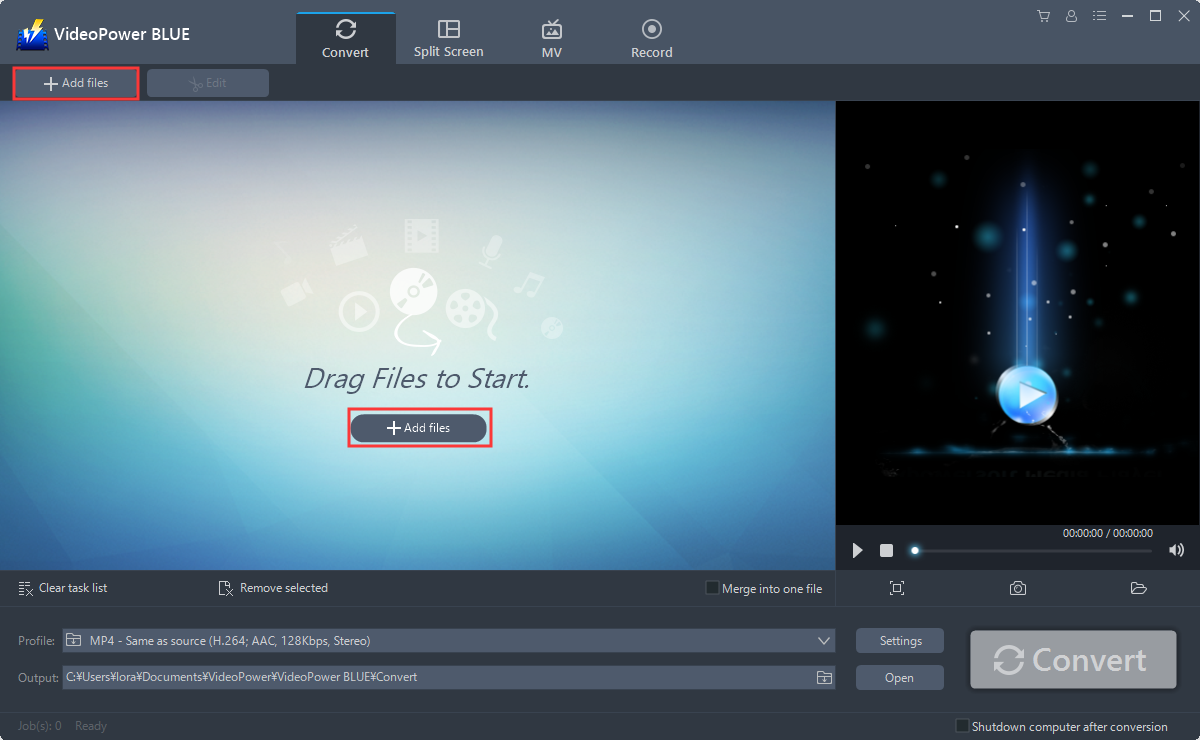
Step 1: Import video files to the program
Launch VideoPower BLUE and go to the “Add files” button to upload your Snapchat video file to the program.
Step 2: Edit video
The imported file is displayed in the list.
Click the “Edit” button at the right side of the added video to enter the built-in video editor.

2.1 Trim Video
You can do the following steps to trim your video:
1) Click “Add Trim Marker” to add a trim marker to the progress bar, you can also add multiple trim markers by clicking this button multiple times.
2) Drag the slider to select the part you want to hold.
3) You can click the up or down button to set the start and end time as well.
4) Now you can choose to keep or delete the selected section.

2.2 Adjustments
1) You can do the following steps to adjust your video:
2) Rotate your video position.
3) Crop video screen size.
4) Synchronize the video and audio.

2.3 Effects
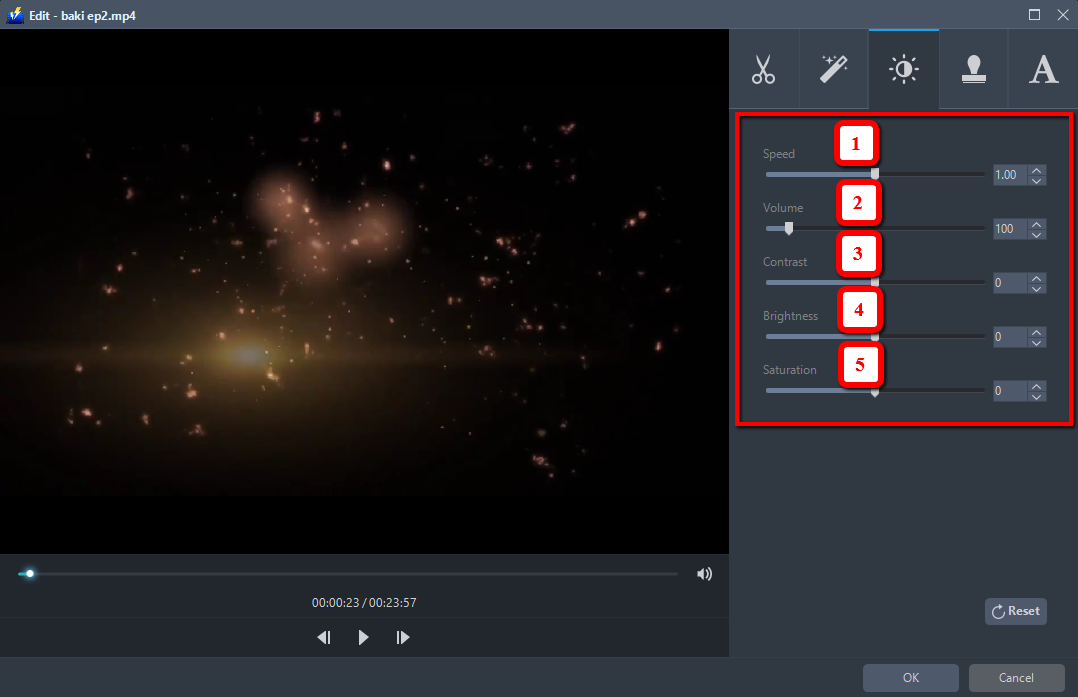
You can do the following steps to change some EFFECTS on your video:
1) Speed – Speed up, slow down, the tempo of your video.
2) Volume – Set sound level.
3) Contrast – Change or adjust the difference in lightness, brightness and/or hue.
4) Brightness – Where you can adjust how lightness or darkness you want your video.
5) Saturation – Adjust the intensity of color in an image.
2.4 Watermark
Add a watermark on the video.
1. Click the Watermark icon.
2. Add text, logo or image as a watermark.

2.5 Subtitle
Add subtitles for the video. You can import external subtitles, or search subtitles for the corresponding subtitles from the Internet. Please refer to another tip about how to edit the subtitle file.
1) Click the Subtitle icon.
2) Click Search Box (you can either click a subtitle saved on your computer or find it online).

Step 3: Conversion
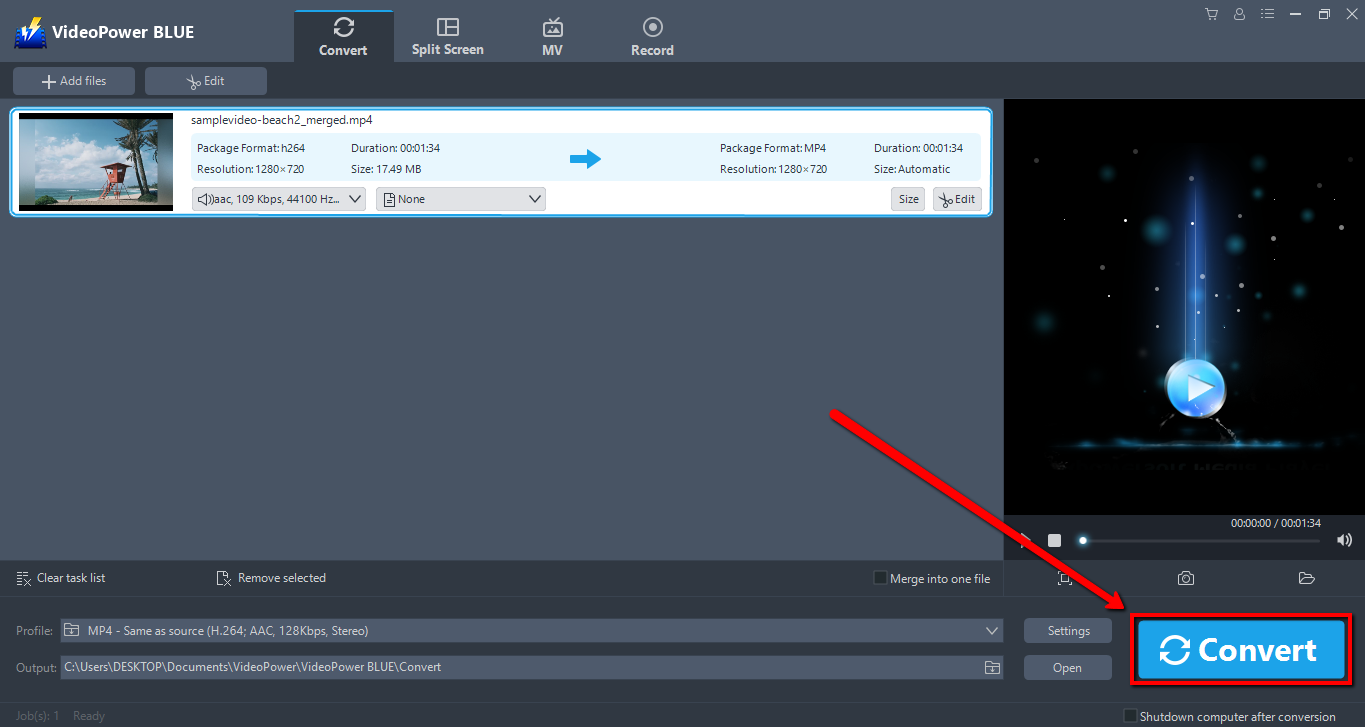
3.1 Convert
When the edits are done, click the “Convert” button, then the software will start to convert and save the edited video in MP4 format by default.
3.2 Storage Folder
A pop-up window from the program will appear informing you that the conversion is complete.
Click “OK” to open the folder of your saved converted files.

Conclusion:
With the development of multimedia technology, a lot of new applications are getting more and more popular. What’s great about VideoPower BLUE aside from being a powerful file converter, the additional functionalities like its video editor is just the perfect tool to crop video for Snapchat.
The built-in video editor will enable you to edit slideshows or videos, apply watermarks, effects, and other basic video editing options such as trimming or cropping. Moreover, it has a split-screen tool for your photos and videos and a screen recorder which allows you to capture any on-screen activity on your computer.


