





Tips Index
Many users commentary says “I want to take a screenshot of my active window and drop-down menu on my Dell instead of the whole screen. How should I do it?”
Famous for its efficiency and reliability among the users, Dell laptop equipped with Windows OS can run a wide range of tasks including taking snapshots of the screen.
Many users may only know how to screenshot the full screen on Dell but they lack the idea of capturing a window, menu or button.
Well, lucky for you, the best and easiest screencast software of all time called VideoPower GREEN is accessible and easy to download and use in your Dell device.
Download the software through this link and follow the instructions.
Step 1: Manage settings.
1) Click the menu on the upper right corner of the interface.
2) Choose “Settings” from the drop-down menu.
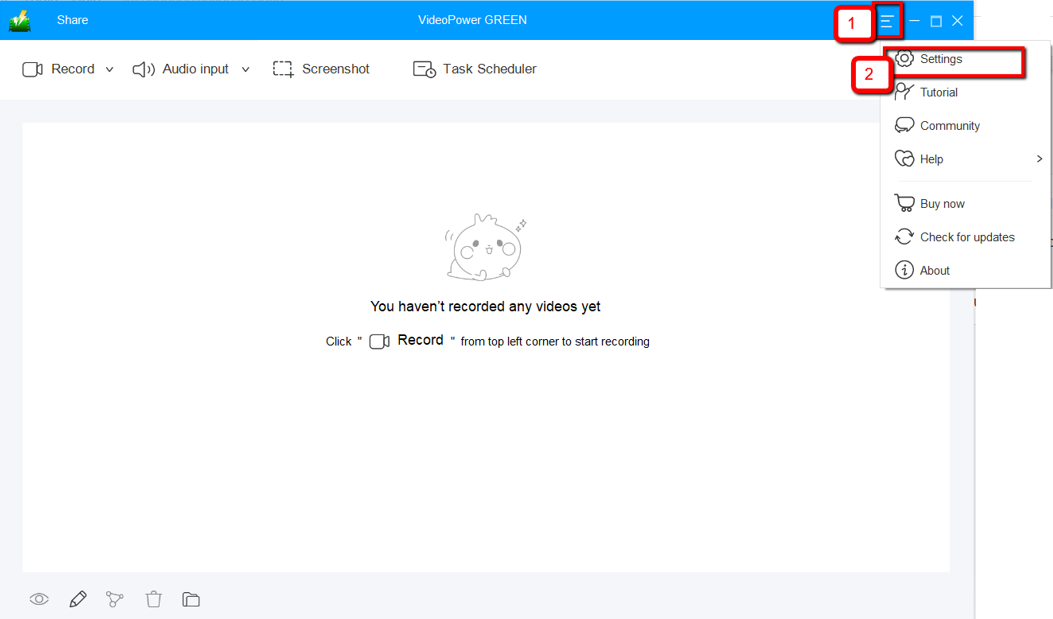
3) Navigate to the “Take Screenshot” section. Make changes accordingly then click “OK.”

Step 2: Take a screenshot on Dell.
1) Click on the “Screenshot” tab.

2) Select the region on the screen that you want to take a screenshot of. By moving the mouse around the screen, you’ll be able to see what types of screenshots you can do.

3) After clicking, you will get a snapshot of the selected region. You can make changes to it accordingly by exploring the menu (highlighted in red) before saving the screenshot.

Conclusion:
There are things that you want to do in your PC but its tools are limited to its default function only. No matter how efficient and reliable your laptop is, like Dell and other laptops equipped with the latest Windows program, it cannot do some function that you want like various tools for doing a screenshot.
So software like VideoPower GREEN can help you take a screenshot on your Dell laptop screen in different ways. Not only that, this software is a multi-faceted software that has a lot of functions like screen recording and task scheduler.


