





Tips Index
Taking screenshots can be also done using laptops and computers but, each device must have the exact and perfect tool in it. This must be the thing a Toshiba user is searching for.
Toshiba is a Japanese computer brand, which is designed to meet the unlimited needs of home users with superior performance, fashion design, high-end professionalism, and multimedia entertainment.
Toshiba hopes to provide users with a brand-new multimedia mobile computing platform, and a self-space for busy and fashionable modern people to fully enjoy their personalized life and work. But still, the screenshot problem is still on the line with a big question mark.
As a response, here is VideoPower GREEN, a screen capturing tool that is very easy to use. It offers various capturing modes such as full screen, window, menu, fixed area, scrolling screen, hand-drawn area, etc.
So, take a look at it and download the software with the below link.
Step 1: Manage settings.
1) Click the menu on the upper right corner of the interface.
2) Choose “Settings” from the drop-down menu.
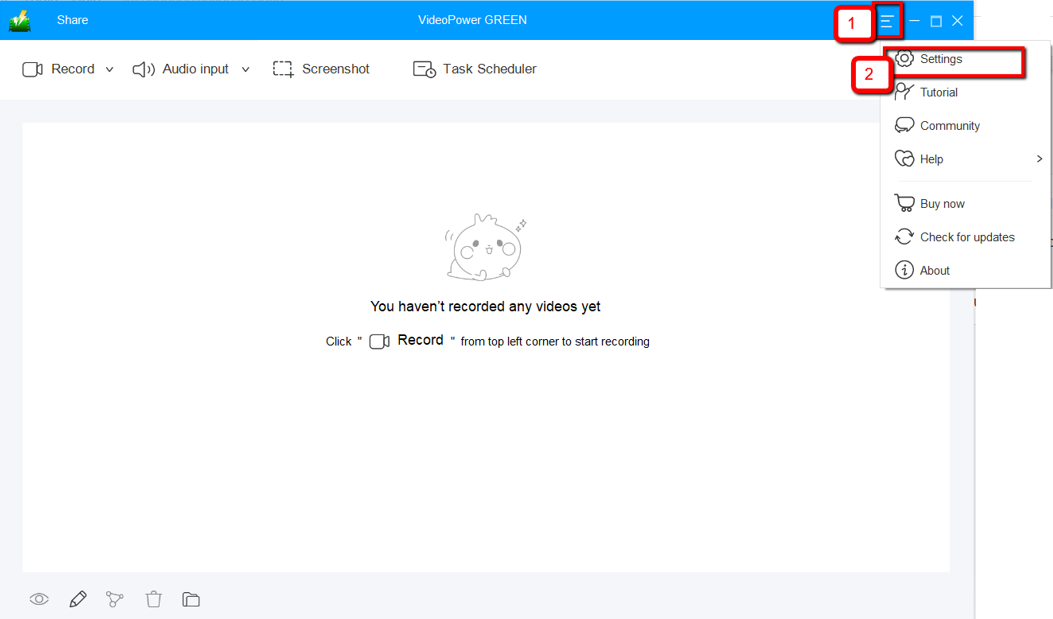
3) Navigate to the “Take Screenshot” section. Make changes accordingly then click “OK.”

Step 2: Take a screenshot on Toshiba.
1) Click on the “Screenshot” tab.

2) Select the region on the screen that you want to take a screenshot of. By moving the mouse around the screen, you’ll be able to see what types of screenshots you can do.

3) After clicking, you will get a snapshot of the selected region. You can make changes to it accordingly by exploring the menu (highlighted in red) before saving the screenshot.

Conclusion:
VideoPower GREEN lets you take screenshots on your Toshiba computers easily. VPG captures and records your screen in high quality. In full screen, a specific window or area. It also has a feature where you can record the audio in the microphone, the system sounds or nothing at all.
A task scheduler tool is helpful if you want to record your screen on a specific time and date, it will automatically record what’s going on in your screen may it be streaming videos, webinars, web cameras, etc.


