





Tips Index
ASUS is currently the world’s largest motherboard manufacturer and the world’s third-largest graphics card manufacturer.
It is also one of the world’s leading providers of 3C solutions, which dedicated to providing individuals and business users with the most innovative value of products and applications.
So what makes it popular?
Asus laptops are very popular for their high performance and low cost. There is a large number of Asus users that use it for photography and video editing – topics we’ll discuss on how to do using third-party software, specifically, VideoPower GREEN.
VideoPower GREEN is a powerful tool that has a lot of functions such as screen recording, audio recording, screenshot, and task scheduler. This software can capture screenshots on Asus.
Download and install the program using the link below.
Step 1: Manage settings.
1) Click the menu on the upper right of the interface and choose “Settings”.
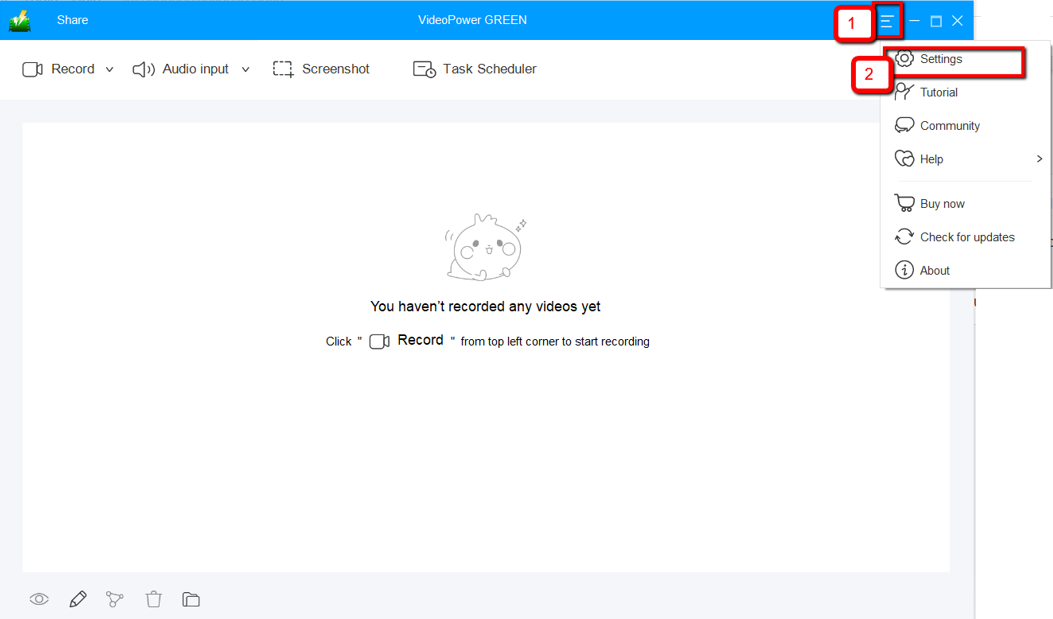
2) Navigate to the “Take Screenshot” section. Make changes accordingly then click “OK.”

Step 2: Take a screenshot on Asus.
1) Click on “Screenshot.”

2) Select the region you want to take a screenshot of. By moving the mouse around the screen, you’ll be able to see what types of screenshots you can do.

3) Release the mouse then you will get a snapshot of the selected area. You can choose to copy to clipboard or save it immediately. You are also able to edit on the taken screenshot like add line, arrow, shape, texts, highlight, blur, etc. before copying or saving.

Conclusion:
The screen capture tool in an Asus laptop is only capable of taking full-screen screenshot. But with VideoPower GREEN, you can take a screenshot on your Asus laptop in different ways. VideoPower GREEN does not only support screen capturing but it has multiple functions and features such as screen recording, audio recording, and task scheduler.


