





Tips Index
Reading other people’s posts, commentaries and other writings can strike you for some reason. Sometimes it makes you recall old memories, remember someone and make you laugh. These feelings make you hold unto those writings in some cases. Thus, screen capturing Twitter posts is one of the ways in saving and preserving something that catches your eyes and heart.
Twitter is an American social networking and blogging service. It is one of the ten most visited sites on the Internet worldwide.
It allows users to update messages up to 140 characters, also known as “Tweets”. This service was founded by Jack Dorsey in March 2006 and launched in July of that year.
Twitter is very popular all over the world. According to Dick Costello, the current CEO of Twitter, there are 140 million active users on Twitter.
Twitter is described as “Internet SMS service”.
However, do you know how to make screenshots on Twitter when you find something interesting?
This must be something you’ll need. Here is VideoPower GREEN, a screen capturing tool that is very easy to use. It offers various capturing modes such as full screen, window, menu, fixed area, scrolling screen, hand-drawn area, etc.
Stop thinking twice. Take a look at it and download the software with the link below.
Step 1: Manage settings.
1) Click the menu on the upper right corner of the interface.
2) Choose “Settings” from the drop-down menu.
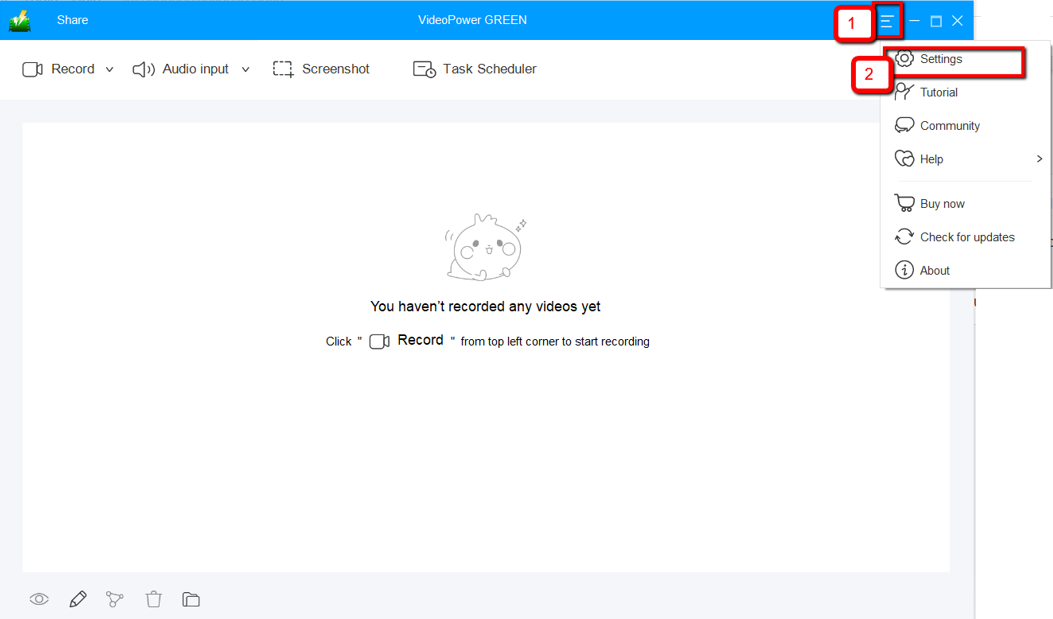
3) Navigate to the “Take Screenshot” section. Make changes accordingly then click “OK.”

Step 2: Take a screenshot on Twitter.
1) Click on the “Screenshot” tab.

2) Select the region on the screen that you want to take a screenshot of. By moving the mouse around the screen, you’ll be able to see what types of screenshots you can do.
3) After clicking, you will get a snapshot of the selected region. You can make changes to it accordingly by exploring the menu (highlighted in red) before saving the screenshot.

Conclusion:
Now you can take screenshots on Twitter with VideoPower GREEN. Capture it in full screen, a specific window or area. It also has a feature where you can record the screen activity and audio through microphone and system sounds.
If you like to record your screen even if you are not around then Task Scheduler tool is perfect for you. Set a specific time and date and it will automatically record what’s going on in your screen may it be streaming videos, webinars, web cameras, etc.


