





Tips Index
Screen capture is not really that new to computers since we have shortcut keys on it (Ctrl + PrtScr) but it is pretty basic, and you still need to open Windows’ Paint to have it edited and the simple interface of Paint makes it a little bit bland and simple for a screenshot and too technical. Even cropping an image out of it is a little bit time consuming since users still have to rotate the image because Windows only have that full-screen capture option on the system’s shortcut keys.
So more to this simple function, how to screen capture on PC that could produce excellent shots quick and easy? Well, Some screen capture software offers more than just your usual screenshot output, some have dedicated functions that ease the process of making screenshots out of your computer.
VideoPower GREEN is a fun screen capture and screen recorder software that could enhance your tasks more than just your usual screenshot. It has various features that could bend the user’s creativity without having too much to click and tap while in the process. It can add annotations, highlights, shapes, and texts to your screenshot that could improve your project.
Step 1: Navigate to Screenshot Feature
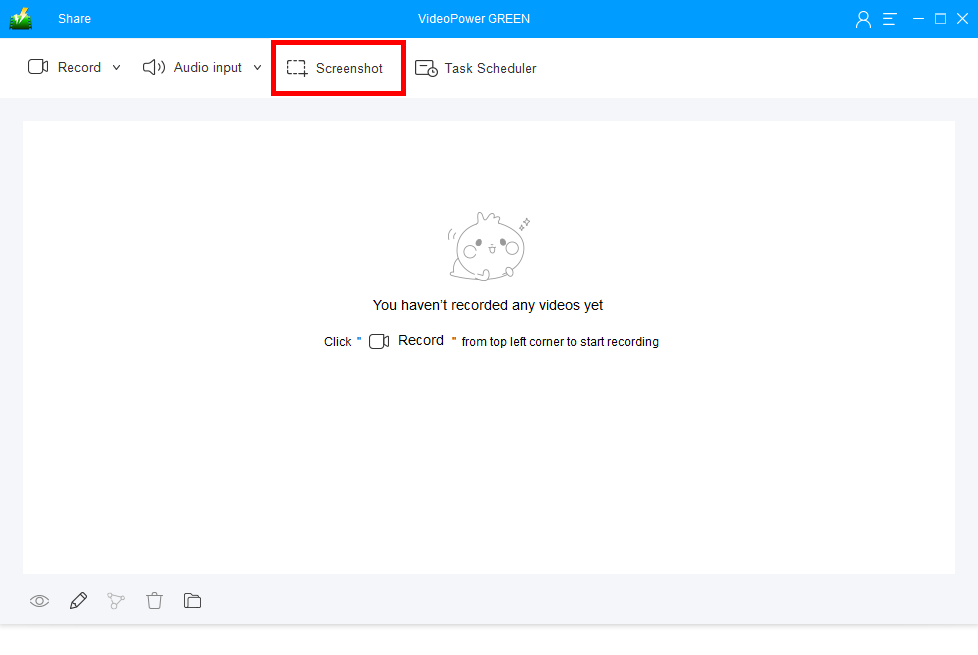
Upon opening the VideoPower GREEN, notice the four major buttons located at the upper portion of the app, make sure that a particular task on the screen is ready and at the background of the software’s window. Click the “Screenshot” function to proceed.
Step 2: Quadrant Screen Slice
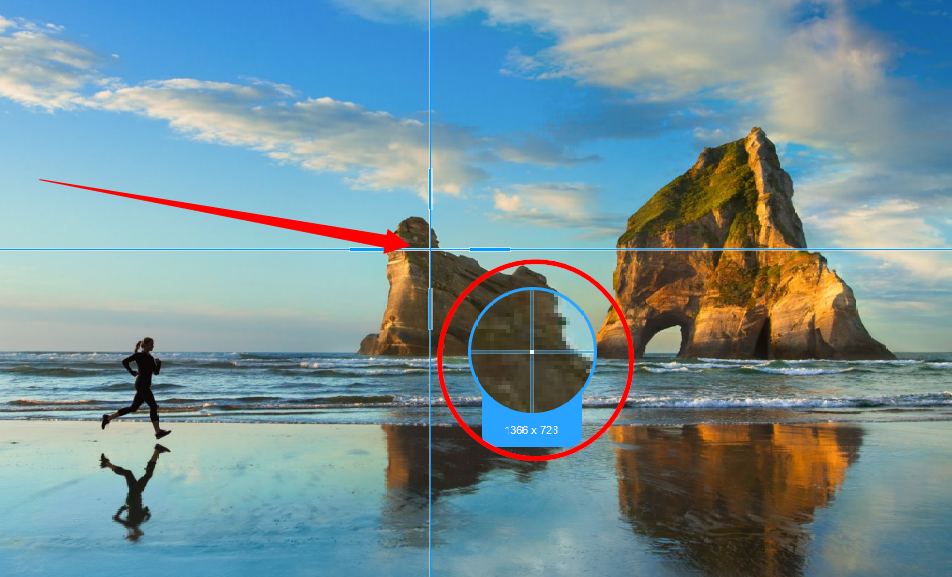
After clicking the screenshot button, the interface will be minimized and will reveal the task behind it with a four-sliced view of the screen with magnification to assist focus. Click and drag the magnification pointer to select the area to capture.
Step 3: Creative Taksbar
3.1 Shapes and Arrows
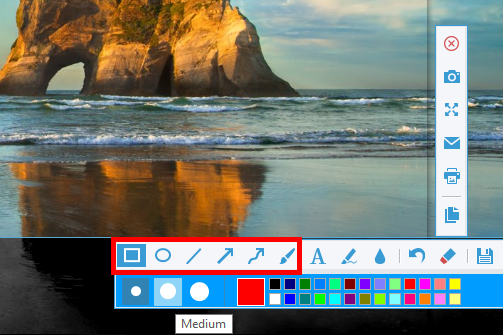
After clicking for a screenshot, there would be two menus available of different categories.
The horizontal taskbar is assigned for highlights and texts. The thickness can be changed from the square shape tool to the free-hand paint tool. Colors can also be assigned depending on the choice.
3.2 Text Tool
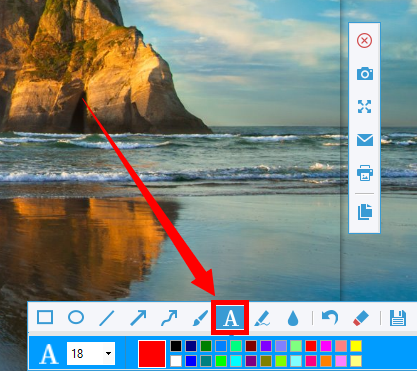
Application of words and letters can be executed through the “Text Tool”. Font size can be edited together with the color.
3.3 Highlight Tool
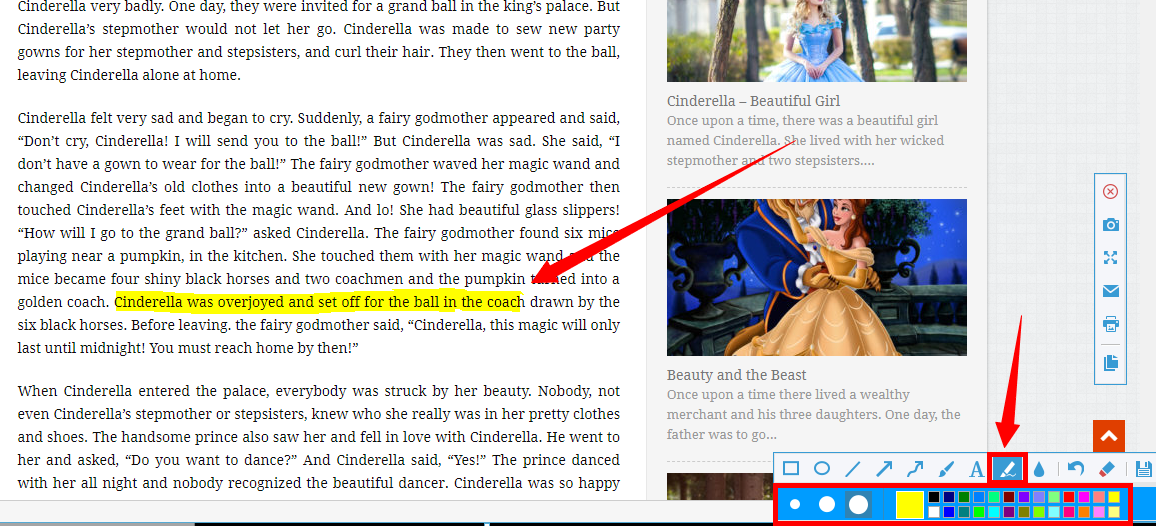
When screenshots involve script or articles, “Highlight Tool” can be used. Thickness and color can also be assigned.
3.4 Blur Tool
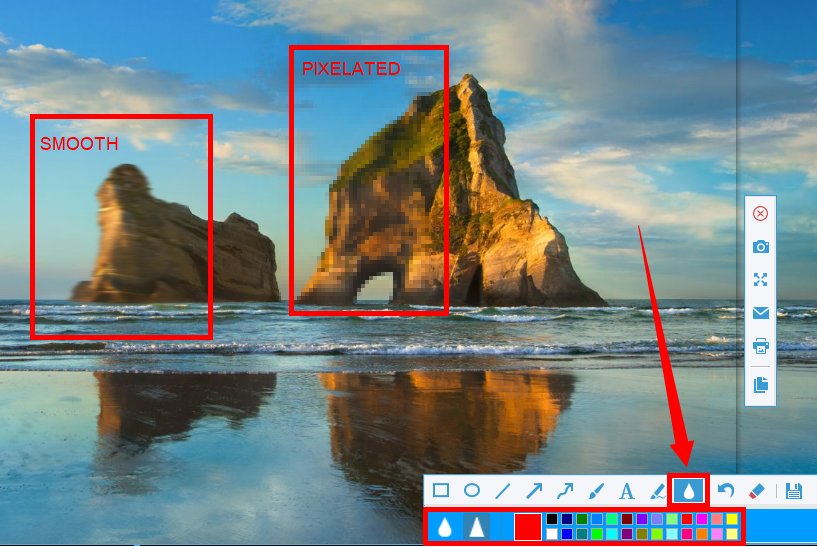
Blur tool can be used to smoothen and pixelate a portion of the photo, colors can also be assigned in the screen capture.
Step 4: Miscellaneous Keys
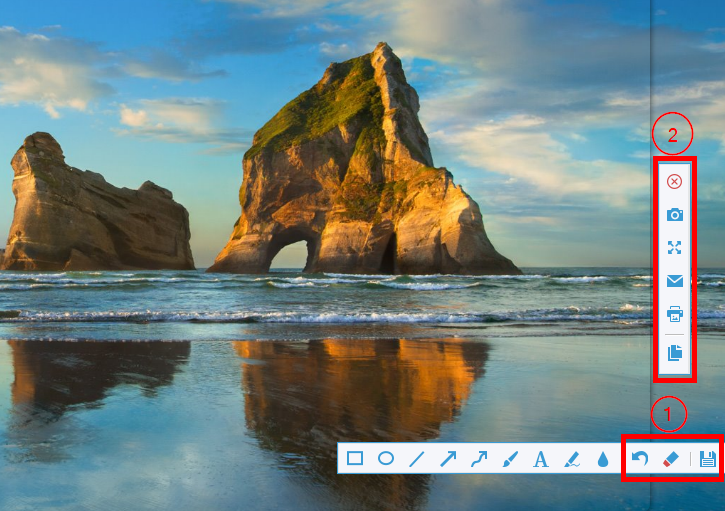
1) “Undo”, “Erase”, and “Save” buttons (From left to right)
2) “Exit”, “Re-capture”, “Fullscreen”, “Share via Mail”, “Print”, and “Copy to clipboard” buttons (From top to bottom)
After editing, click the “Save” button, and a new window will appear for you to choose the file folder destination.
Conclusion:
VideoPower GREEN is a powerful screen capture software that functions beyond your usual screencasting app. More than it can add annotations, highlights, shapes, and texts, it can also record your screen from multiple options available within the interface, like fullscreen, region, basic audio to mouse toggling. These features go the extra mile for important tasks and projects without downloading another software for another feature unavailable. It is all in one, packed and built to surpass. Try it now!


