





Tips Index
If you like to play video games on your computer, you absolutely knew Steam. It is a video game digital distribution service by Valve. It is a platform that allows you to buy, store, and play all sorts of the most popular video games about sports, replication, and role-playing games. It is known to be one of the ultimate destinations for playing, discussing, and creating games online.
While playing on Steam, there are times that you thought to screen capture Steam games to show your friends about the best moment in your gameplay. Sometimes, you wanted to record your gameplay to share online about your achievements, to brag your skills, and of course to earn money by posting tutorials and best moves compilation. In these cases, you would come to think about how to record your screen on the Steam site while playing games.
Actually, there are quite many Steam game recorders on the online market nowadays that can answer your worries on how to screen record Steam games. But then, searching for the best recorder isn’t that simple. You can encounter a number of recorders that make you confused and can bring you a little bit of work. So, to help you save time, one of the best tools that you can use is the third-party screen recorder application software called VideoPower GREEN. It is the perfect screen recorder software for making video game tutorials and game commentaries most especially to screen record Steam games.
Moreover, VideoPower Green allows you to easily record anything on the screen and save it locally with a high-quality video file. It works great for making high quality and high frame-rate videos which is a must-have for recording games. In addition, this app also comes with various useful features designed for desktop screen recording activities. Furthermore, with this app, you can record either the background sound or your narration through a microphone. You can even use both sound sources. You can also add annotations with this app to emphasize something on the screen for the viewers to easily catch up.
At the moment, users can use this screen recorder free version and be reminded of its trial version limitations. Before activation, the VideoPower GREEN recording range is only three minutes and shows a large watermark after recording. Click the link below to download and install the app.
Start Screen Recording Steam Games
Step 1: Choose a Sound Source
If audio is needed in recording, choose the desired sound source among System sound, Microphone, System sound and microphone, and choose None if audio isn’t needed.
In recording Steam games, you can either use “System sound” or “System sound and Microphone”.

Step 2: Select Steam Game Recording Mode
Click on the “Record” button to choose the recording mode for Steam games among Full screen, Region, Audio, Web camera, and Around mouse. Select the preferred mode to capture the exact desired range of the screen.

Step 3: Start Steam Screen Recording
A pop-up window will show to confirm whether to start the recording or not. Click “OK” to start the recording.

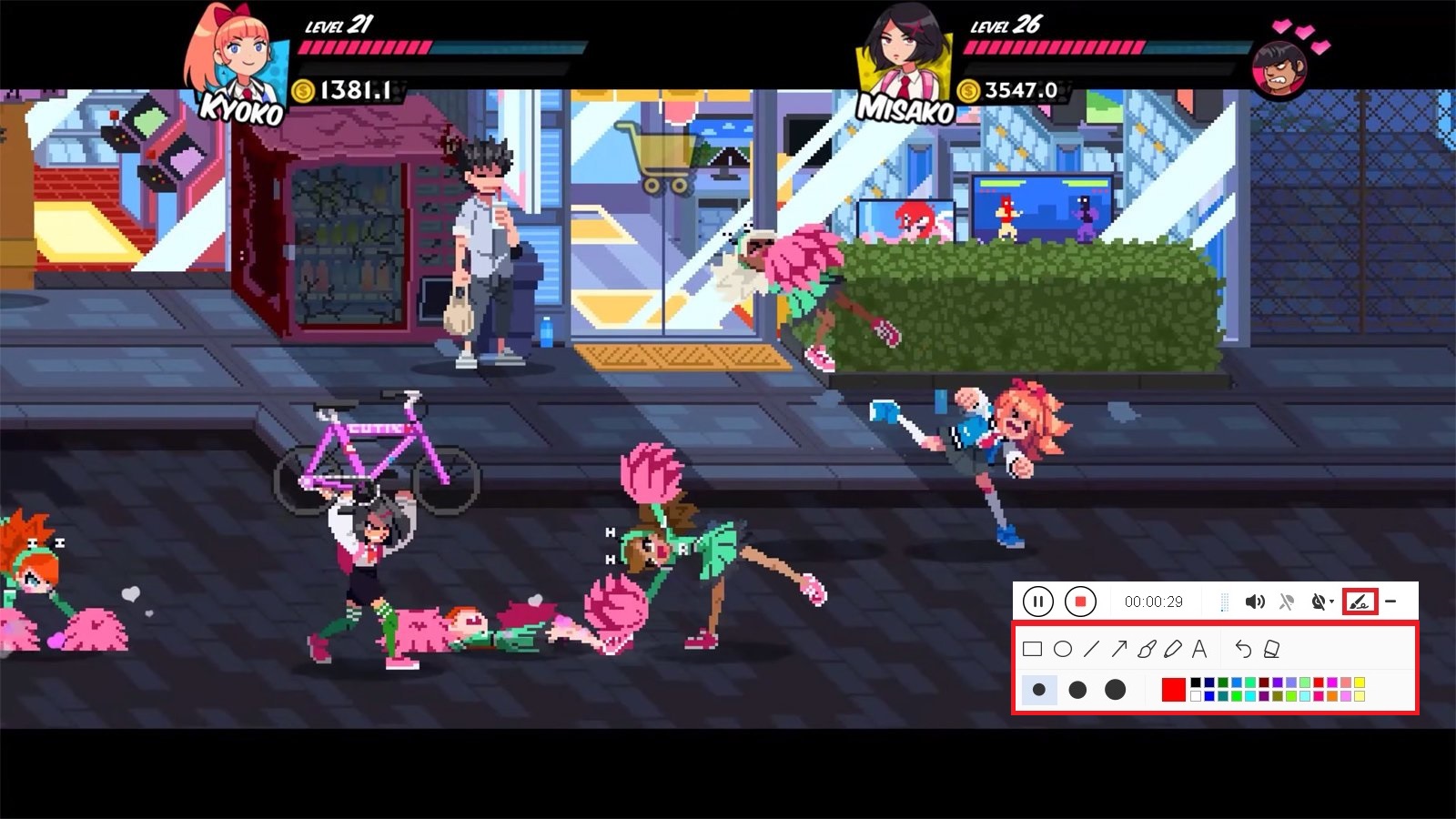
Step 4: Annotate Video while Recording
While recording, adding lines, arrows, shapes, texts, highlight, blur, etc. is possible. Just click the edit button to show the editing toolbox.
Step 5: End Steam Recording
Click the “Stop” button to end the recording.

Step 6: Redirect to Recorded File List
The screen will automatically redirect to the recorded file list on the main interface window after the recording. Right-click the file and do more operations if necessary. Double click the file to play or view the recorded file.

Conclusion:
Talking about games, there are sites where you can play, discuss, and create games online and one of those is the Steam. Steam is a video game digital distribution service platform that allows you to buy, store, and play all sorts of video games. You can indeed enjoy different games on it but you cannot record games on it alone. Thus, there’s a need for you to use third-party screen recorder application software.
To make video game recording possible, third-party application software called VideoPower GREEN is recommended to record Steam games. This app is really helpful for Windows users as it also has a variety of useful professional features such as audio recorder, screenshot capturer, and task scheduler which can help users go through their digital task easily, smoothly, and hassle-free.


