





Tips Index
4k is a type of display resolution considered by many as the most excellent resolution next to 8k. To simply put it, 4K means a clearer picture. It creates images in a screen that are crisper and capable of showing more details than standard HD.
When it comes to displays and screens, a resolution is simply the number of pixels (AKA colored dots) they can show. The 4K images are around 4,000 pixels wide, hence the name 4k. This translates directly to the level of detail that a picture has. That’s a lot of numbers indeed.
Well, let’s talk about why you have come here. Therefore, with the help of this article, we’ll talk about the best way for 4k screen capture software.
Considering the best 4k screen recorder in the market to date, VideoPower GREEN is an amazing screen recording software you can record webinars, movies, games and Skype videos in HD, and much more in a quick and hassle-free way. The smart intuitive and easy-to-use interface offers a complete suite of tools and options for professional screen capture.
This is widely used as a reliable 4k screen recorder for PC because it can produce high-quality videos like 4K but not leaving a brand watermark. Many people who have to use this product can capture images as high as 4K resolution, which makes it highly recommended. VideoPower GREEN allows users to use a webcam, microphone, and system sounds.
This 4k screen recorder for Windows supports the following versions, 7/8/8.1/10
Preparation: Recommended Settings to Record in 4K
Settings
Click “Settings” to adjust output formats.

Modify Output Settings
Click “Output” to modify the video output setting by copying the indicated set-up as shown below to ensure a smooth 4k screen recording.
Click “OK” when all is set and done to save the changes made.

That’s it! You can now proceed and record your video in the best 4k quality, following the steps below.
Step 1: Choose a sound source
If you need to record the screen with audio, open the “Audio input” tab and choose sound source among:
1) System sound
2) Microphone
3) System sound and microphone
4) None (if audio isn’t needed)
If you want to record 4k videos playback on your PC, select “system sound”. If you want to record some tutorials or video chat, choose “System sound and microphone” to record both.

Step 2: Choose a recording area
Click on the “Record” button to choose a recording mode among:
1) Fullscreen
2) Region
3) Audio
4) Web camera
5) Around mouse
To record screen in 4K (full HD) quality and get the best results, the recommended recording mode is “Fullscreen”.

Step 3: Start 4K Screen Recording
After choosing a recording area, a prompt pop-up will appear. Click “Ok” to start the recording.

Annotate Video while Recording
*This step is optional. Users can skip this step if annotations are not necessary.
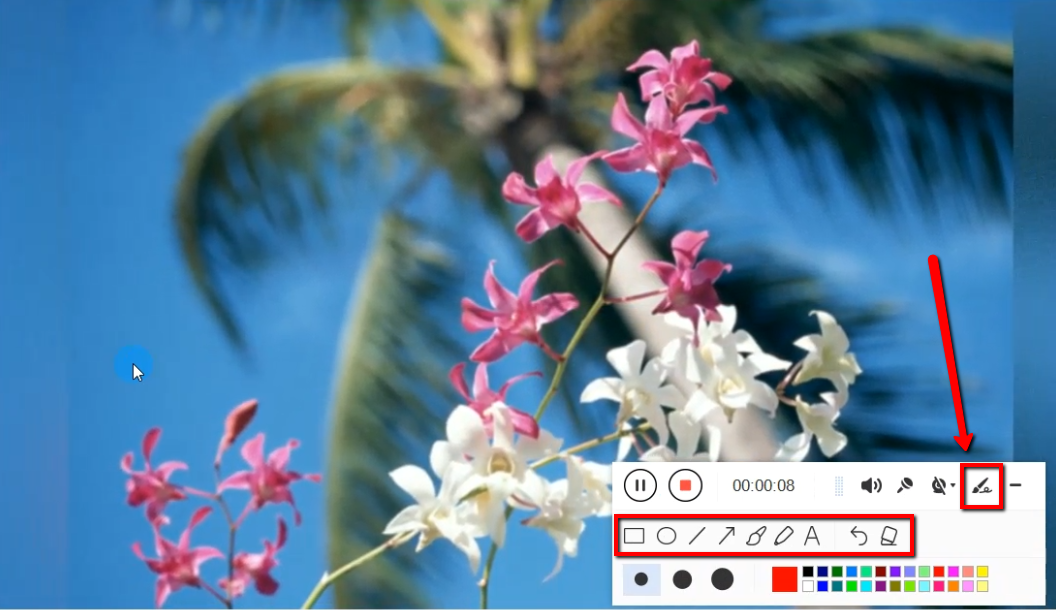
During the screen recording, you can add annotations like lines, arrows, shapes, texts, highlight, blur, etc. Just click the edit button for the editing toolbox to appear.
Step 4: End the recording
Click the “Stop” button to stop recording.

When the recording is over, you will be redirected to the recorded file list on the main interface window. If you wish to do more operations, right-click the file to choose.

Conclusion:
The need to record screen nowadays is not dwindling, but increasing. With the demand to record high-quality screen recording like 4K, a dependable 4K screen recorder for PC is what you need.
You might need to record some events or record a gameplay session, webinar, movies, or whatever the reason is, you are going to need a 4k desktop recorder like VideoPower GREEN.
This reliable 4k screen recorder should do the trick to record screen in 4k quality. Packed with a built-in video editor that could cut unnecessary parts in the beginning/end of the video, speed up or slow down your recordings, or add your own watermark to the video.
A flexible setting that could enable you to choose whether to hide cursor or desktop icons and disable the screensaver during 4k screen capture if necessary.


