





Tips Index
It has been long gone since video editing is only available to professionals in cinema and television production. Today, more and more people access applications that enable them to edit videos of various purposes like school projects, personal tasks, events, and more commonly for social media and other forms to profit from or just for entertainment. The availability of such software gave light to the creativity of the common public that gathered a portion of our entertainment and not just in some expensive film and television production.
Two of the most well-known video editing software is Adobe After Effects and Final Cut Pro. Adobe After Effects has a more professional looking interface with many complicated buttons if you’re a beginner for video editing. Although it is not solely a software for video editing it enhances the project through its powerful functions and key buttons. If you happen to be starting yet or tried other simpler video editing software before then Adobe After Effects is a bit difficult to learn since it has various buttons within the interface that you need a study to produce a polished result.
Final Cut Pro, on the other hand, has a more popular within the users since it is definitely created for video editing. But the downgrade to this software is that it only runs on macOS and not on windows. So Windows users will tend to find an application that could produce the same result and video editing experience just like Final Cut Pro.
VideoPower BLUE is a powerful video editing software that has multiple functions that could compete for a toe to toe with Adobe After Effects and Final Cut Pro. Accessorize your videos with built-in themes, texts, and background music to produce spectacular video projects. Below is a comparison table of the three best video editing software and where you could have a better bargain with more awesome results.
| Adobe After Effects | Final Cut Pro | VideoPower BLUE | |
|---|---|---|---|
| Operating System | Windows and macOS | macOS only | Windows only |
| Main Functions |
|
|
|
| Interface Design and User-friendliness | Complicated | Moderately Complicated | Very User friendly |
| Highest Video Quality | High Definition and 4K | High Definition and 4K | High Definition and 4K |
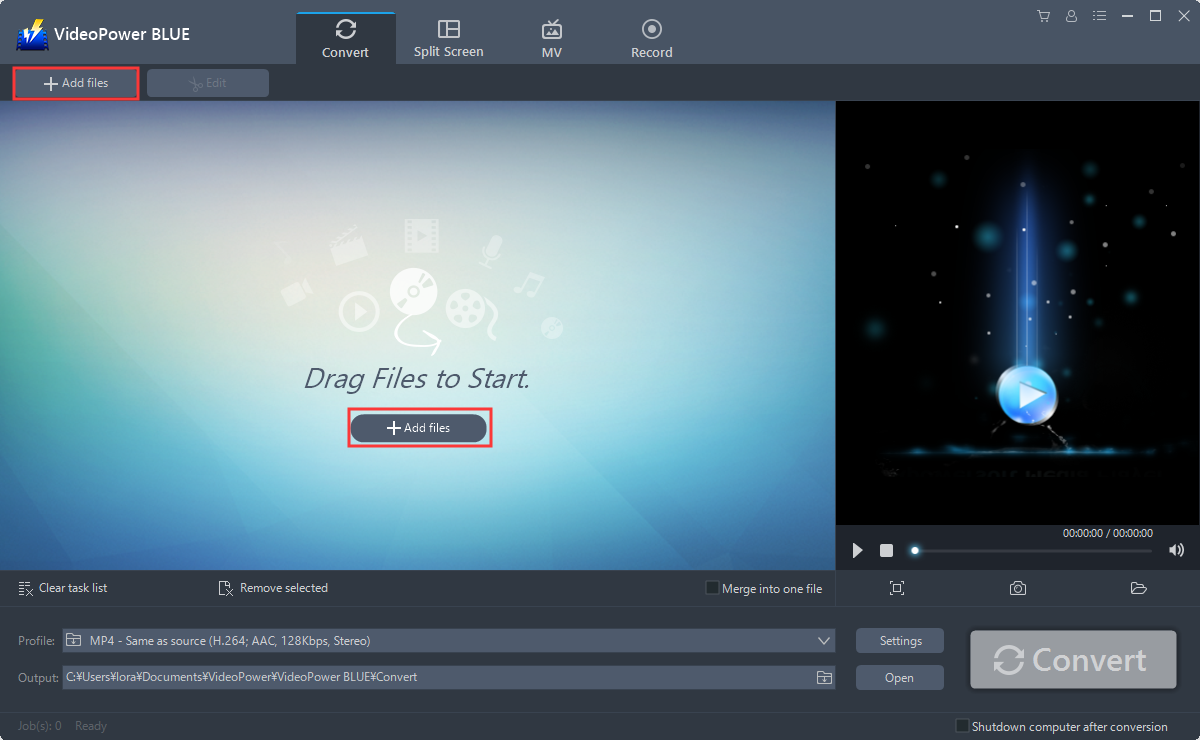
Step 1: Add File/s
You can directly import the file to the program by clicking the “Add files” button or by drag-and-drop the file to the interface.
Step 2: Edit the video file.
The imported file is displayed in the list. Click the “Edit” button on the right side of the file.
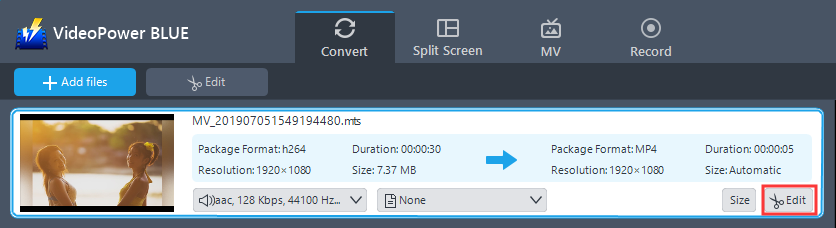
The built-in video editor will pop up, with its help, you can make the perfect movie. Adjust speed and volume, trim, cut, crop, rotate, or flip videos. Add effects, subtitles, and watermark while adjusting brightness, contrast, and saturation that will make editing conveniently easier.
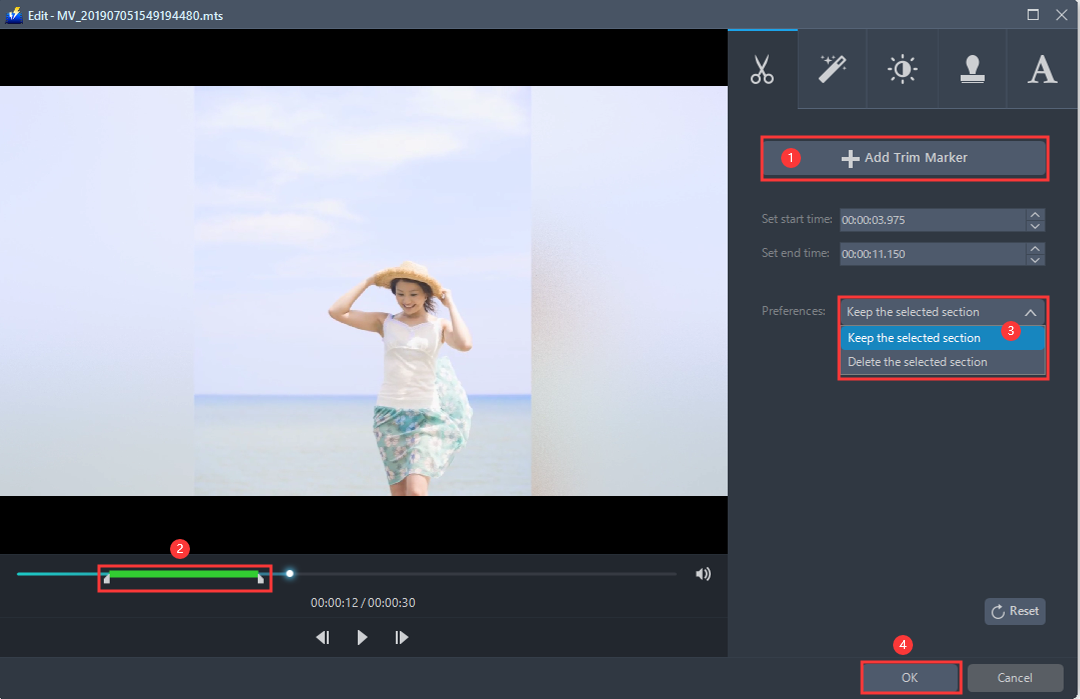
For example, you can trim your video as shown below:
1) Click “Add Trim Marker”.
2) Drag the mark as shown below to select the part you want to cut. If you want to select multi-sections, please repeat 1 and 2.
3) Choose “Keep the selected section” or “Delete the selected section” from “Preferences”.
4) Click “OK” to save the setting.
Step 3: Convert the file to any format.
If you need to convert the video file to another format after editing, follow the instructions below.
3.1 Set the output format.
1) Click to open the “Profile” drop-down menu, then choose the format you want from the profile list.
2) Here you can click “Video” and then “MP4”.
3) You may now choose the quality you prefer.

3.2 Start Conversion
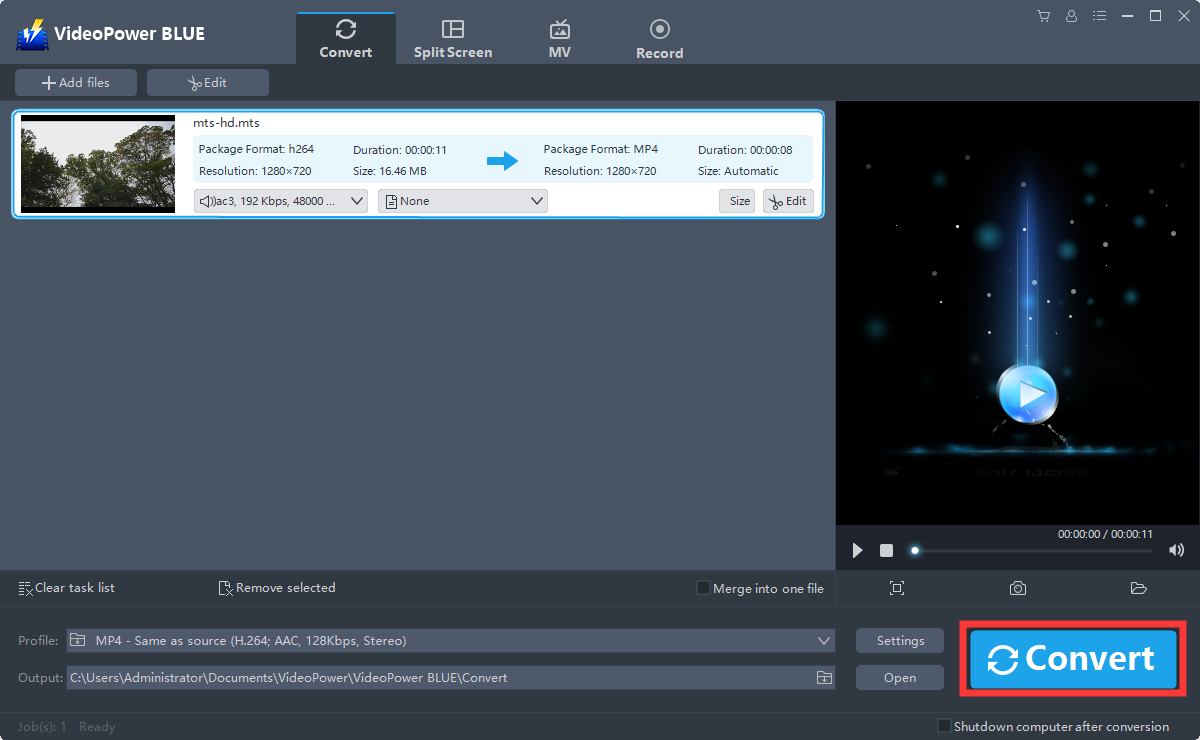
Return to the file list. Click the “Convert” button, then the converted MP4 file will be saved in the default output folder.
3.3 Find the Converted MP4 files
A pop-up window from the program will appear informing you that the conversion is complete. Click “OK” to open the folder of your saved converted MP4 files.

Conclusion:
VideoPower BLUE is a very friendly user video editing software that enables first-time video editors and newbies to learn how to edit videos in an interface that is easy to understand and can walk users through the process of what they want to create in a video and produce professionally created video projects. More to that, at only 19.95$ you get to create videos with bundles of accessory features you can integrate into your videos. It can convert to too many available formats from videos to audios and has a split-screen feature. It goes beyond creativity but rather it is efficient and practical at a price that can be compared to Final Cut Pro and be less complicated than Adobe After Effects. Try it now!


