





Tips Index
Attending and learning from the four corners of a classroom is indeed very helpful in the life of all people, especially for those who are filling their tabula rasa mind and for those who are starting to learn by engaging with actual people and the environment. One of the successful ways of meeting this is through actual and hands-on learning at school.
However, since learning at school cannot cater to individual unique needs one by one, reviewing a kid’s lesson at home most specifically 3rd grader’s lesson is problematic most especially for working moms. Therefore, online YouTube educational videos like National Geographic kids, StoryBots, Kids Learning Tube and many more are recommended. It is because, in 3rd grade, pupils’ progress from practicing basic skills to mastering has moved on to more complex skills. Also, this year, technology becomes an even more important part of learning.
YouTube educational videos answer reviewing and tutoring concerns but then, this must be done online. The problem is, an internet connection isn’t always that good and some pupils don’t have a permanent internet connection. So, for more convenient learning, downloading educational videos for students is what most of the parents are looking for. Therefore, to download educational videos, an amazing, hassle-free, and trusted third-party application software called VideoPower RED is best suited in concerns about how to download educational YouTube videos for the 3rd grade for hassle-free offline purposes. Download educational videos for students or pupils now!
Try to use the product for free. Just click the link below to download and install the app.
Method 1: Copy and Paste
Step 1: Copy and paste URL then download the video.
Copy the link of the selected video file that you want to download and then paste it on the product by clicking the “Paste URL” button. After this, the video will be processed in the “Downloading” control panel.

Step 2: Check the downloaded file.
After the downloading process is complete, go to the “Downloaded” control panel to see and check the downloaded video. Right-click to do more operations and double-click to preview.

Method 2: Auto-Detect (Embedded Detector)
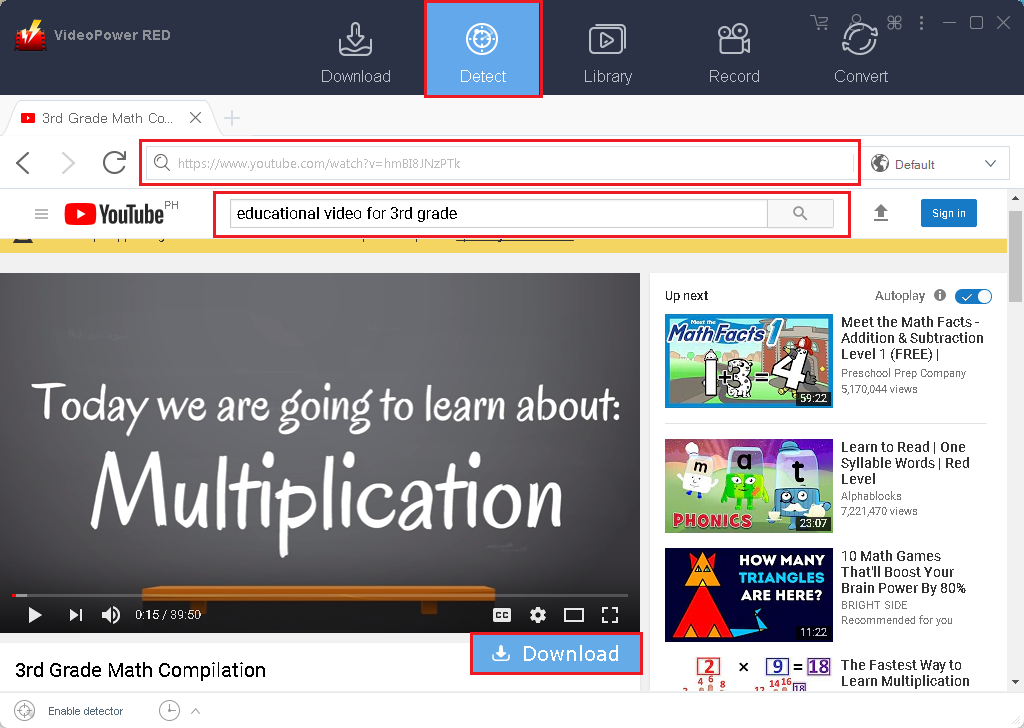
Download the desired video file using Auto-Detect on the “Detect” control panel. The software can detect the video being played on it and it will be downloaded automatically using any sites except for YouTube wherein using YouTube site, there’s the need to click first the download button before it will be downloaded.
Step 1: Open the video file through an embedded detector.
Open the YouTube site and select the desired video file. After selecting, the “Download” button will automatically pop-up at the bottom of the video. Click the button to start downloading.
Step 2: Process Download
After clicking the “Download” button, navigate to the “Download” tab to process the video. Wait for it to finish.

Step 3: Check the downloaded file.
After the download is finished, the file will automatically be moved on the “Completed” panel. Right-click to do more operations and double-click to preview.

Method 3: External Detector
Step 1: Activate the “Enable detector”.
Detect videos being played in any sites through an external browser and download it automatically after activating the “Enable Advanced Detector” on the download settings window and enabling the detector located on the lower left of the software.
Enable Advanced Detector (Support HTTPS)

Enable Detector

Step 2: Check download processing.
After selecting the “Enable advanced detector” and “Enable Detector”, play the video and navigate to the “Download” panel to process the download. Wait for it to finish.

Step 3: Check the downloaded file.
After the download is finished, the file will automatically be moved on the “Completed” panel. Right-click to do more operations and double-click to preview.

Method 4: Screen Record
In some cases, because of slow internet connection, downloading would be problematic. To continue saving the desired video file, use a screen recording feature.
Step 1: Start screen recording.
Record the desired screen through five different modes; Region, Full screen, Around mouse, Web camera, Only audio. Select one and the recording will start automatically.

Step 2: Check the recorded file.
After the recording is finished, check out the recorded file on the “Record” control panel. Right-click to do more operations and double-click to preview.

Conclusion:
Learning in four corners of a classroom at school is a hands-on experience for learners most especially Grade schoolers specifically 3rd Graders. They can experience things and make stronger their learnings. Also, learning at school is also fun as they can encounter other people and make new friends with them. However, having a lot of people around the kid is also distracting. This can be a reason why they can miss some information about their lessons therefore, parents are doing the extra mile to educate their child.
One of the parents’ ways for their said extra mile is tutoring their kid at home. But then, this is problematic for working parents. So, working parents decided to let their child be educated through online videos from YouTube. As these videos can be accessed online, a much more convenient choice is raised for them. Educating their child through YouTube videos offline with the help of a third-party application software called VideoPower RED. An amazing, hassle-free, and trusted software with various useful features like screen recording and video converting features.


