





Tips Index
Nowadays, almost everyone owns a mobile phone. Unlike the early days of this particular technology, you can now watch movies, listen to music, shop online, book tickets, etc on a mobile phone. In using VideoPower YELLOW, you can download MP3 to a mobile phone.
Living in this era is great because music is very accessible and can be played in portable devices without the need for big stereos and stuff. The emergence of smartphones as mobile phones has a great role in listening to music portably.
However, it’s a pain in the neck to listen to the music that requires an internet connection every time you want to hit PLAY. Online music streaming services only allow users to listen to music online and in order to download and enjoy it you need to pay for it. It such a hassle.
To download the free software, just click on the link below.
Method 1: Search and Download Music
Step 1: Search for either artist or song
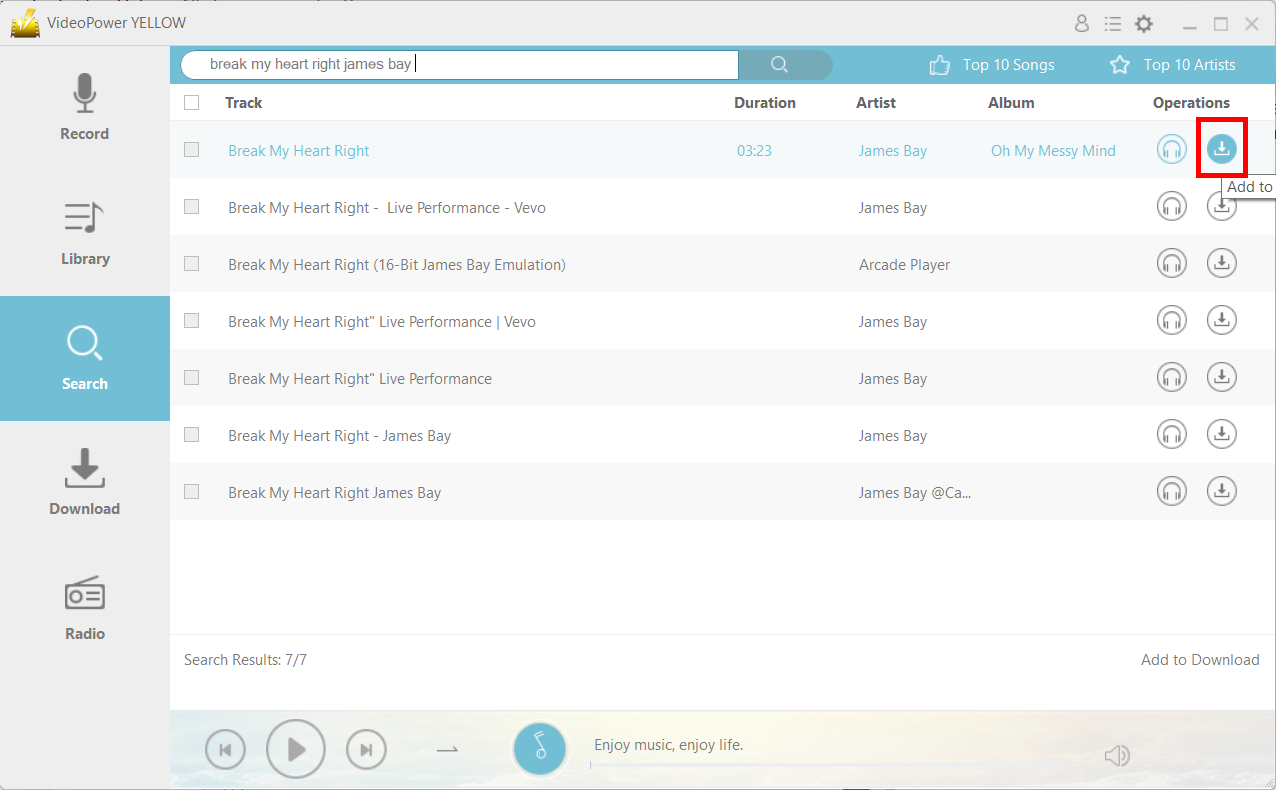
Launch the program after a successful installation. Go to the “Search” function and search the song that you want to download.

Step 2: Download music from the search results
The search results will display multiple tracks pertaining to the search inputs. The song’s details shown on the list includes duration, artist, and the album is displayed.
Click on the “Download” icon, to download the song.
Step 3: Check the download section
3.1 Downloading
After selecting the appropriate track, it will automatically be transferred to the “Download” button specifically at the “Downloading” list.

1) Pause – click on this button if found second-guessing about the track downloaded or if batch downloading is causing delays on each download, it can always be paused.
2) Stop – Click on this button to terminate the downloading process.
3.2 Download Complete
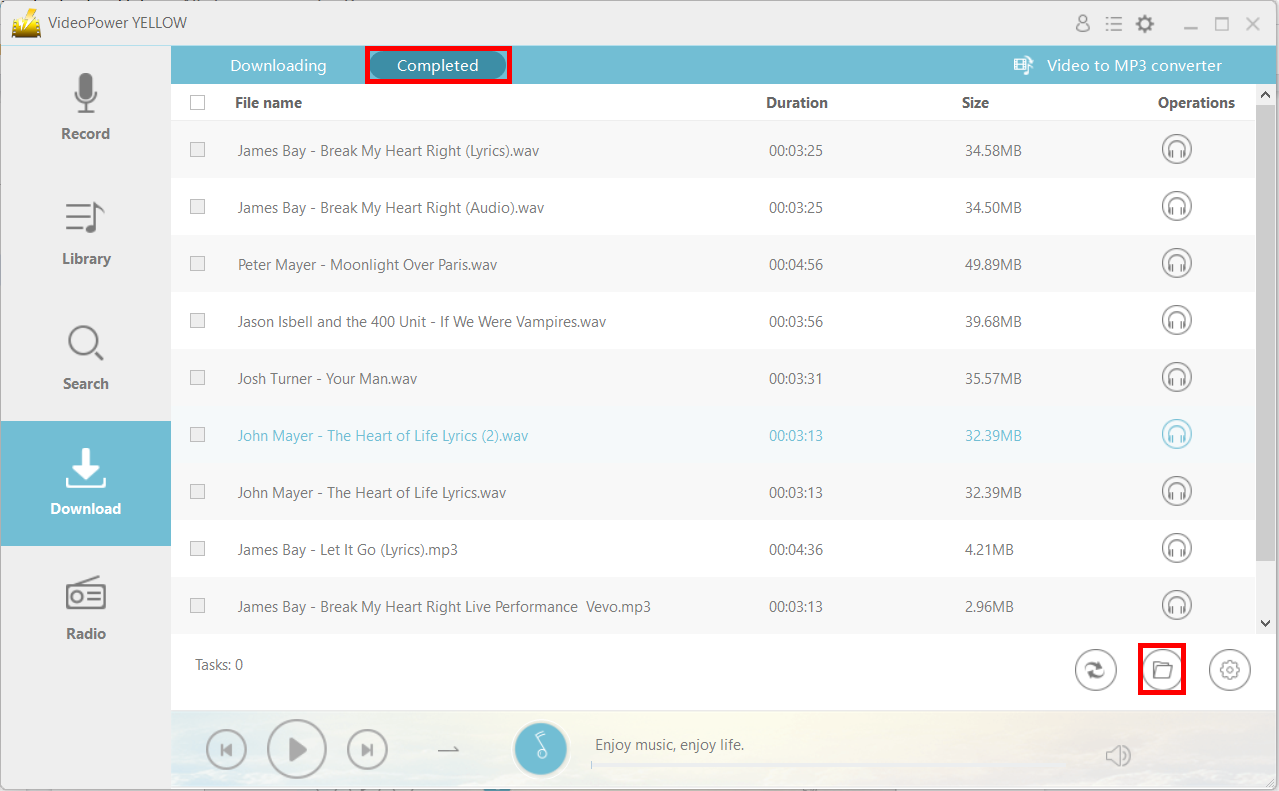
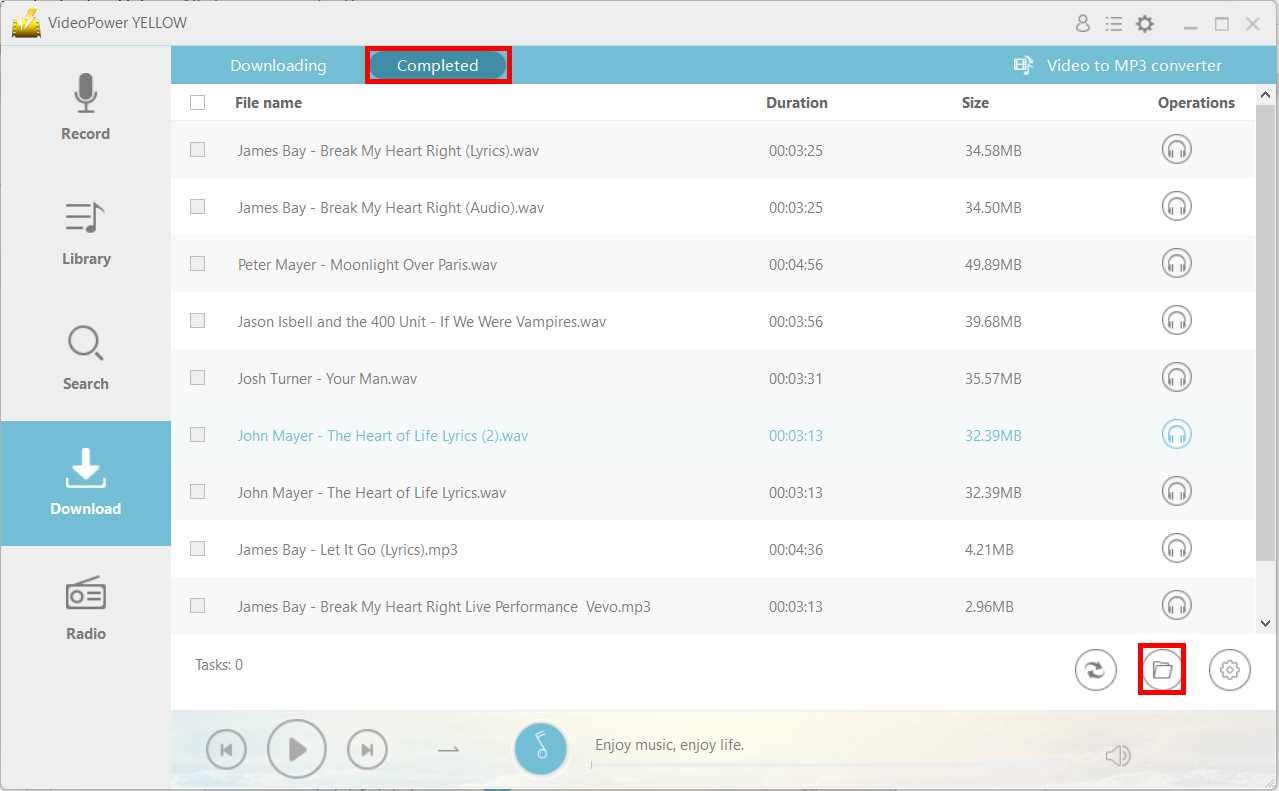
After downloading, the file will be in the “Completed” tab in the “Download” section. You can find the location of the file by clicking on the “File location” icon on the lower-right.
Method 2: Convert the video to MP3
If you want to download the audio from a music video, just follow the instructions below.
Step 1: Launch the program
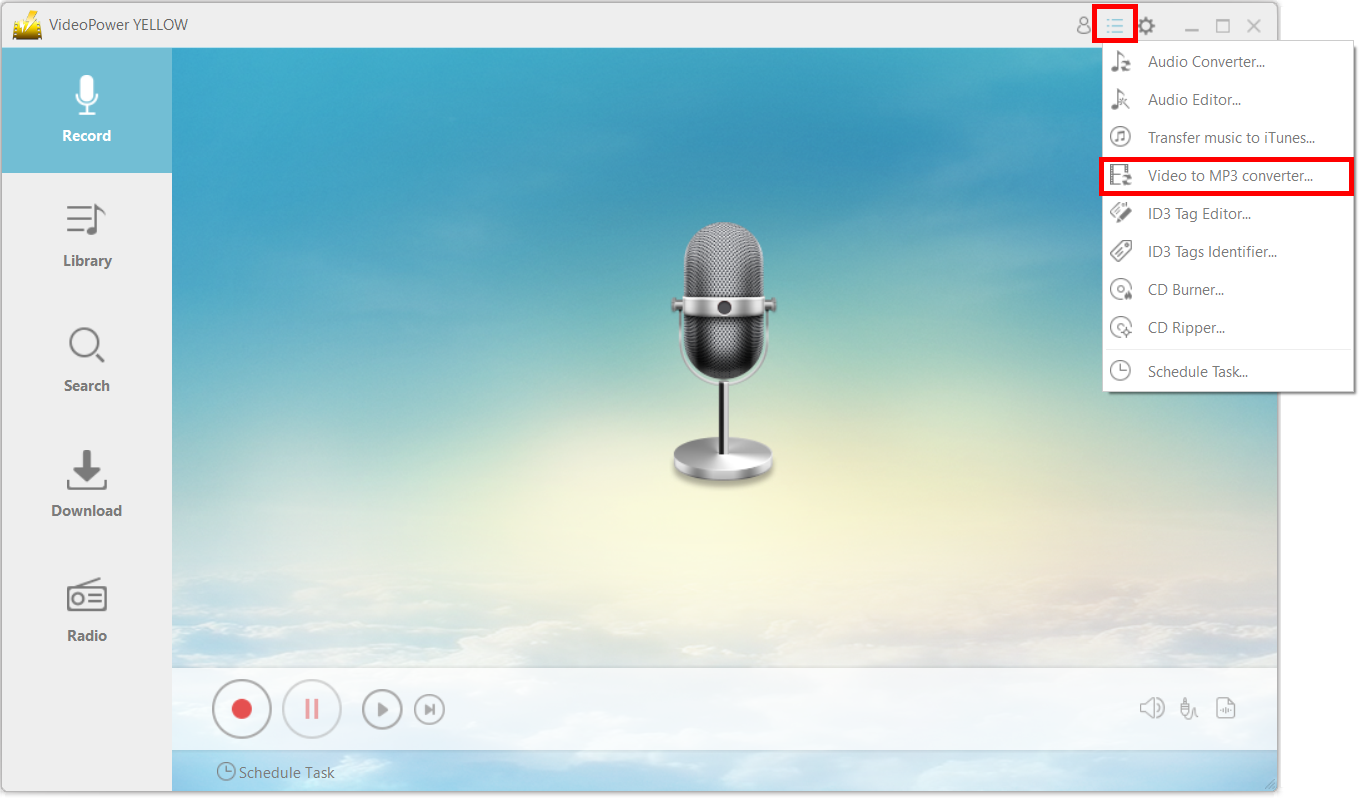
Click on the main menu icon and choose “Video to MP3 Converter.”
Step 2: Convert the music video to an MP3 file
2.1 Paste the Video URL
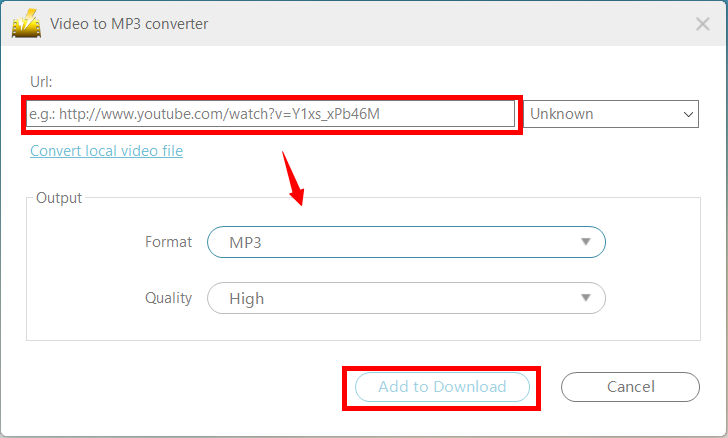
Copy and paste the URL of the video that you want to convert into the new window. Make sure that you set the format under “Output” to “MP3.”
2.2 Check the download process
Navigate to the “Download” function and you will see that the file will be in the “Downloading” tab.
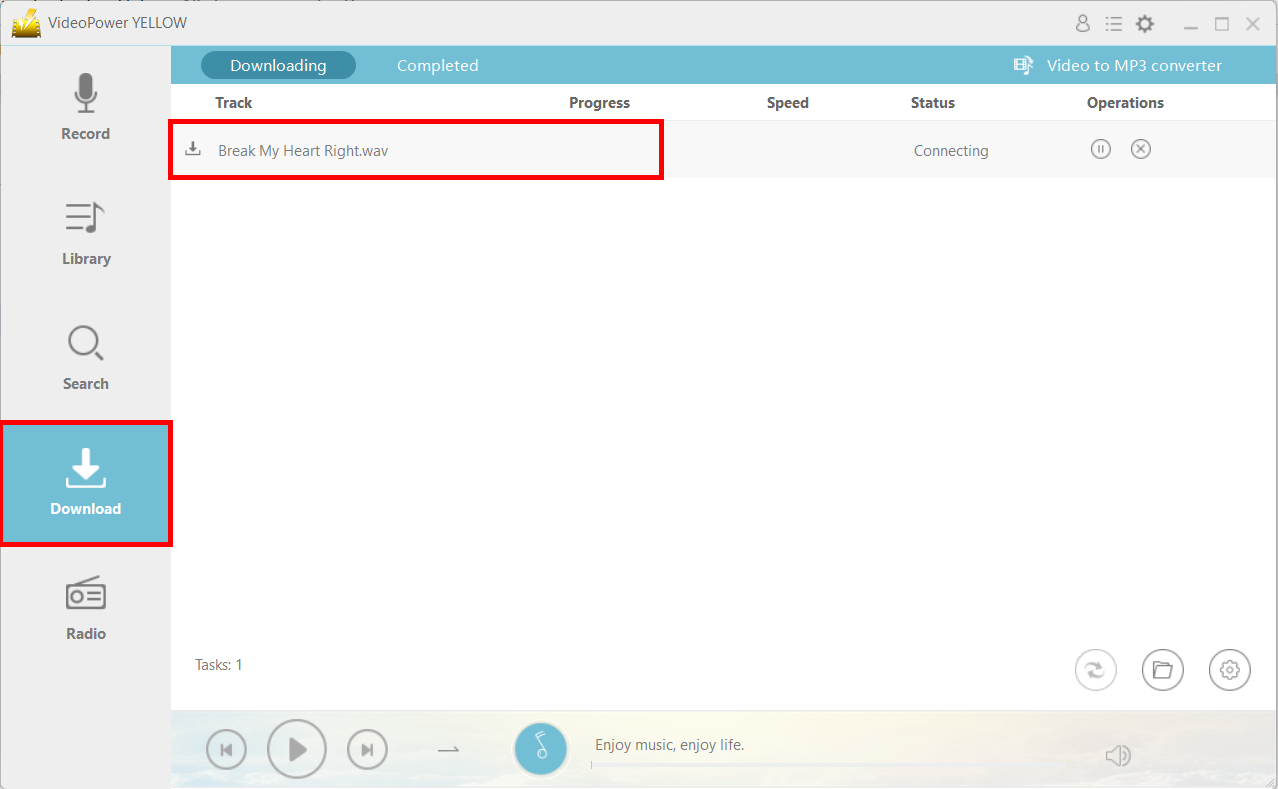
2.3 Complete download
After downloading, the file will be in the “Completed” tab. You can open the file location by clicking on the folder icon on the bottom right.
Method 3: Record the audio
For this final method, you can extract the audio by recording it directly.
Step 1: Set the sound source
Before recording the track, make sure that the sound source is set to “System sound.”

Step 2: Set the file format
Make sure that the recording is set in the format of “MP3.” – or whatever format you deem appropriate.

Step 3: Record
Click the “Record” button to start recording.

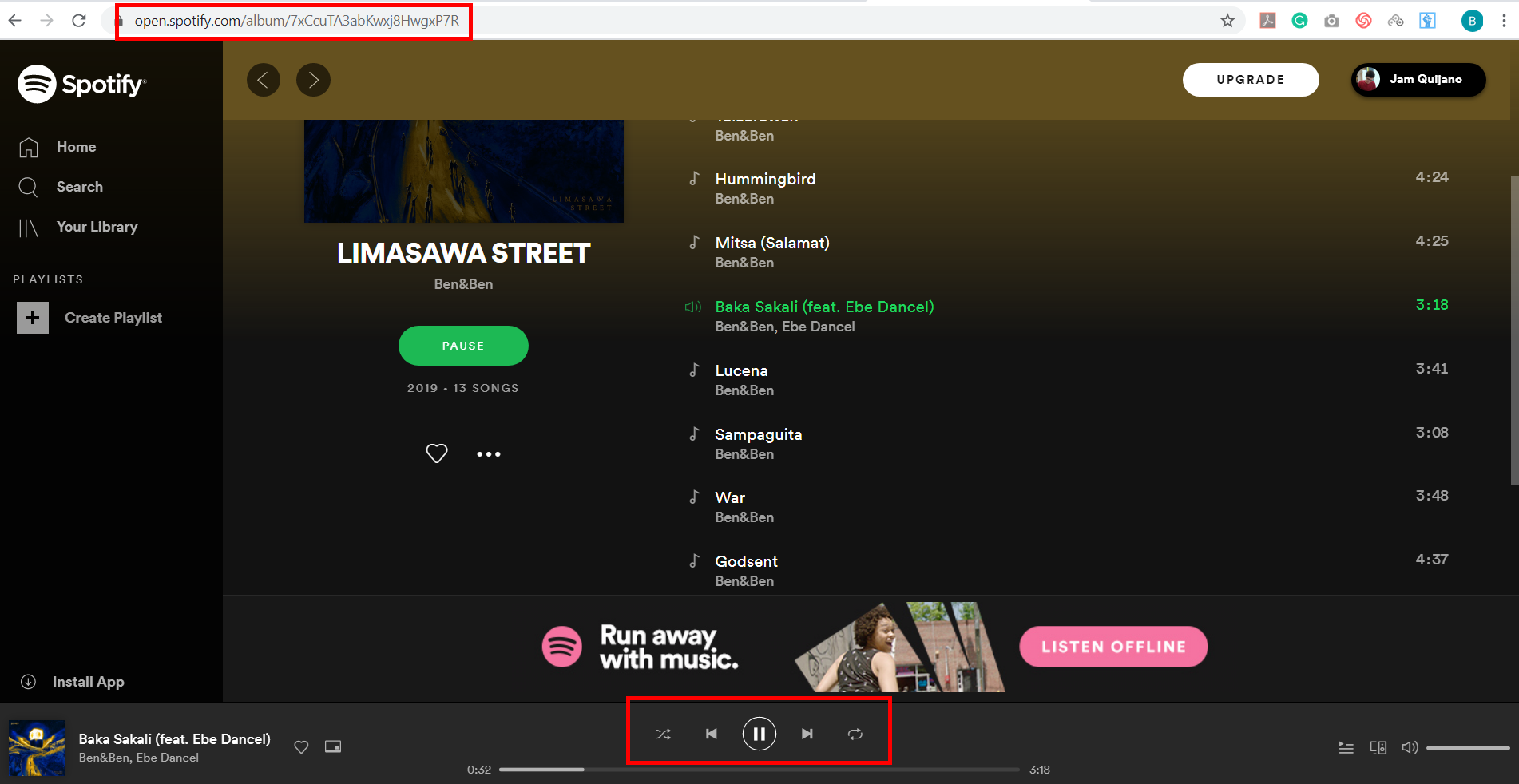
Play the music you want to record.
Go to the track that you want to save. In this example, we’ll use a Spotify track.
Find the file location.
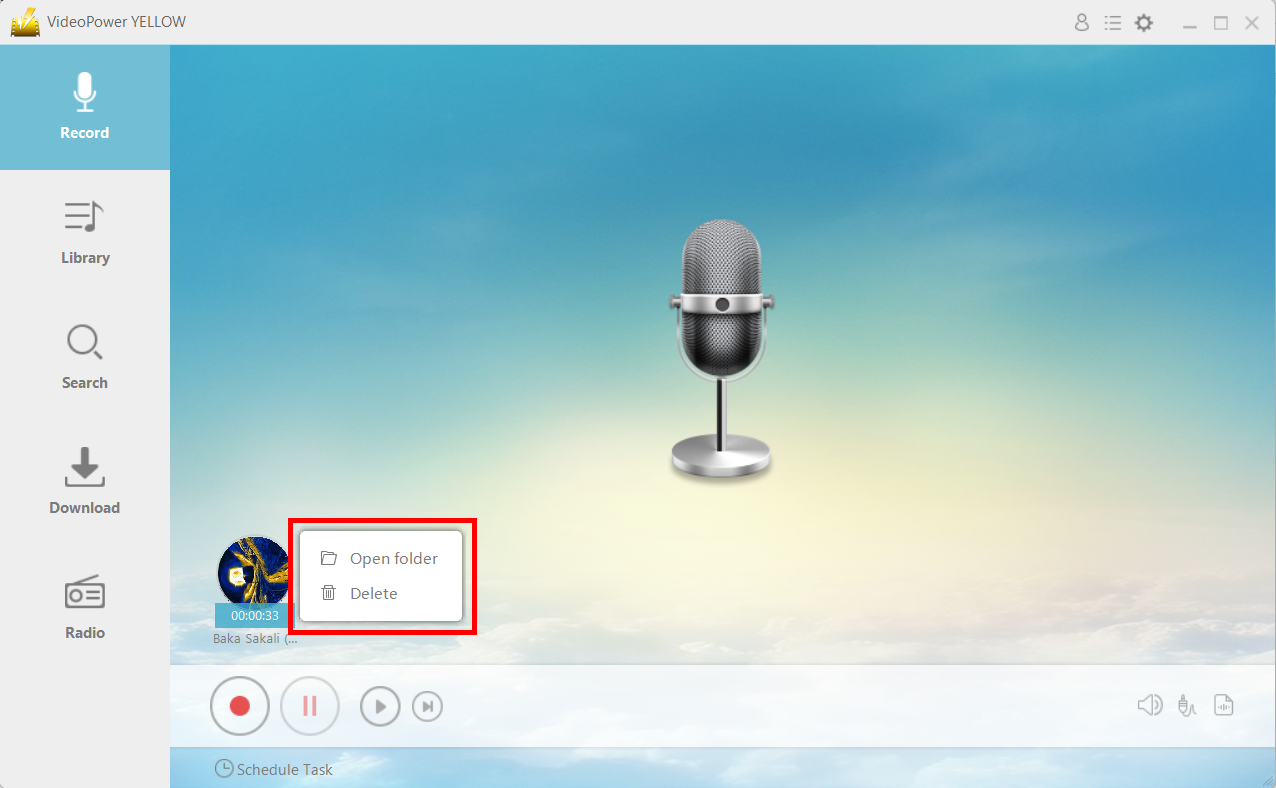
After recording, right-click the recorded track icon and click “Open folder” to open the storage location of the recorded audio file or click “Delete” if you want to delete the file and record again.
Conclusion:
Now that you’ve done these three methods to save the MP3 to your computer, you can now put them on your mobile phone. Using VideoPower YELLOW, you can download MP3 and transfer them to your mobile phone easily.
VideoPower YELLOW delivers ultra-versatility in music, whether you want Youtube Music download, Amazon Music download or even Spotify. It can also record any audio playing in your PC just in case if you’re unable to download your target song.


