





Tips Index
Because MP3 is the most common audio format on the internet, it occupies most of the mainstream market.
There are times that you may want to convert MP3 music format into a lossless music format. At present, there are two kinds of lossless audio formats, one is WAV, the other is FLAC.
WAV is an audio file format developed by Microsoft Corporation. It is used to save the audio information resources of the Windows platform. It is widely supported by the Windows platform and its applications. So converting MP3 to WAV lossless music is a good choice.
Here we will give you tips on how to convert MP3 to WAV on Windows PC.
We are going to use VideoPower BLUE for format conversion. You can download it from the below link for free.
VideoPower BLUE is a powerful tool that has multiple functions such as screen recording, basic video editing, slideshow creation, and audio and video conversion. This software can convert MP3 to WAV.
Step 1: Add the MP3 file to the program
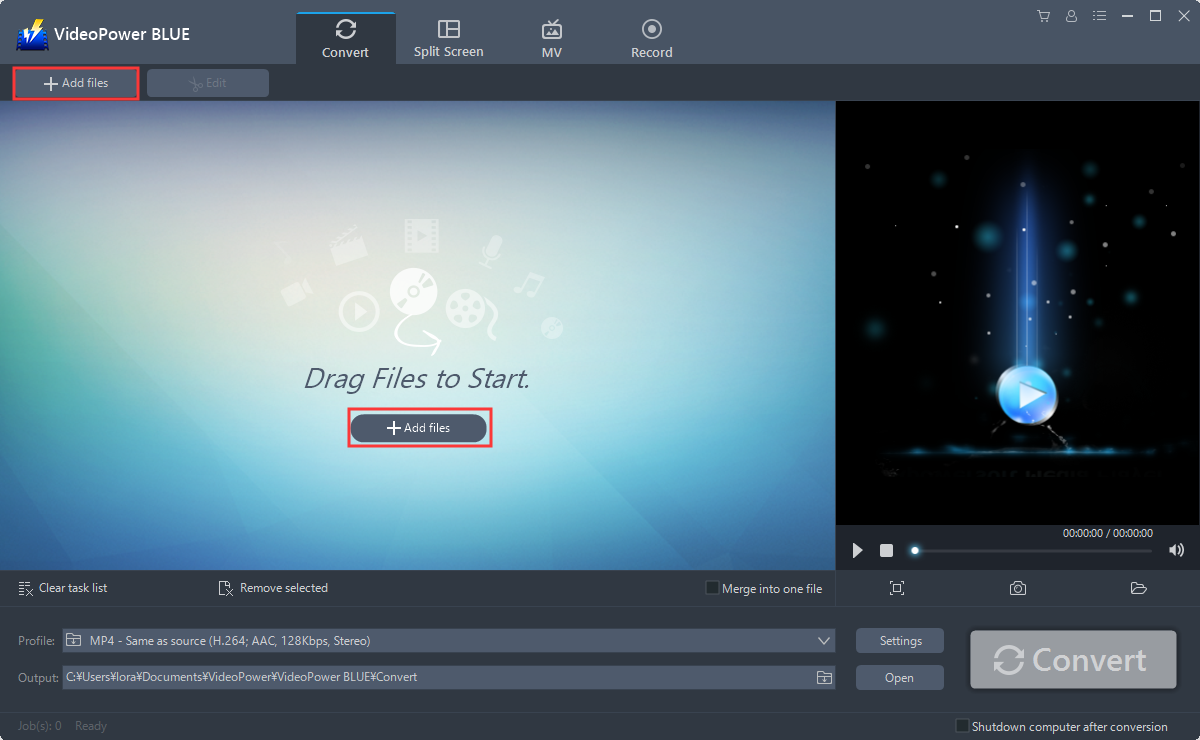
Run the program if you have installed the Audio Converter – VideoPower BLUE successfully on your PC. You can directly import the file to the program by clicking the “Add files” button or by drag-and-drop the file to the interface.
Step 2: Edit the MP3 audio
If you need to edit the audio first before converting, just follow the instructions below.
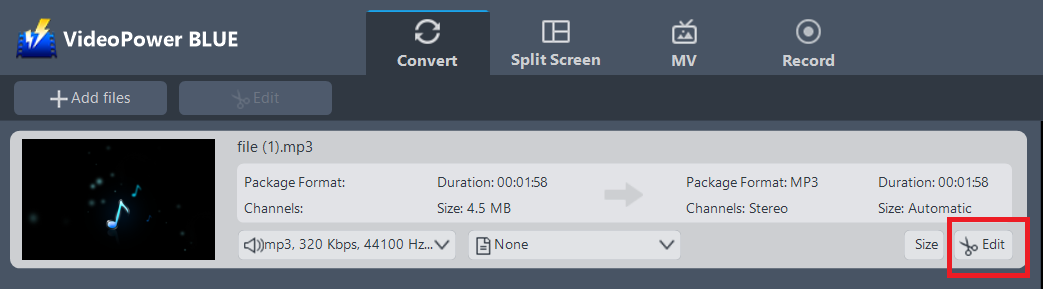
The imported MP3 file is displayed in the list.
Click the “Edit” button on the right side of the file.
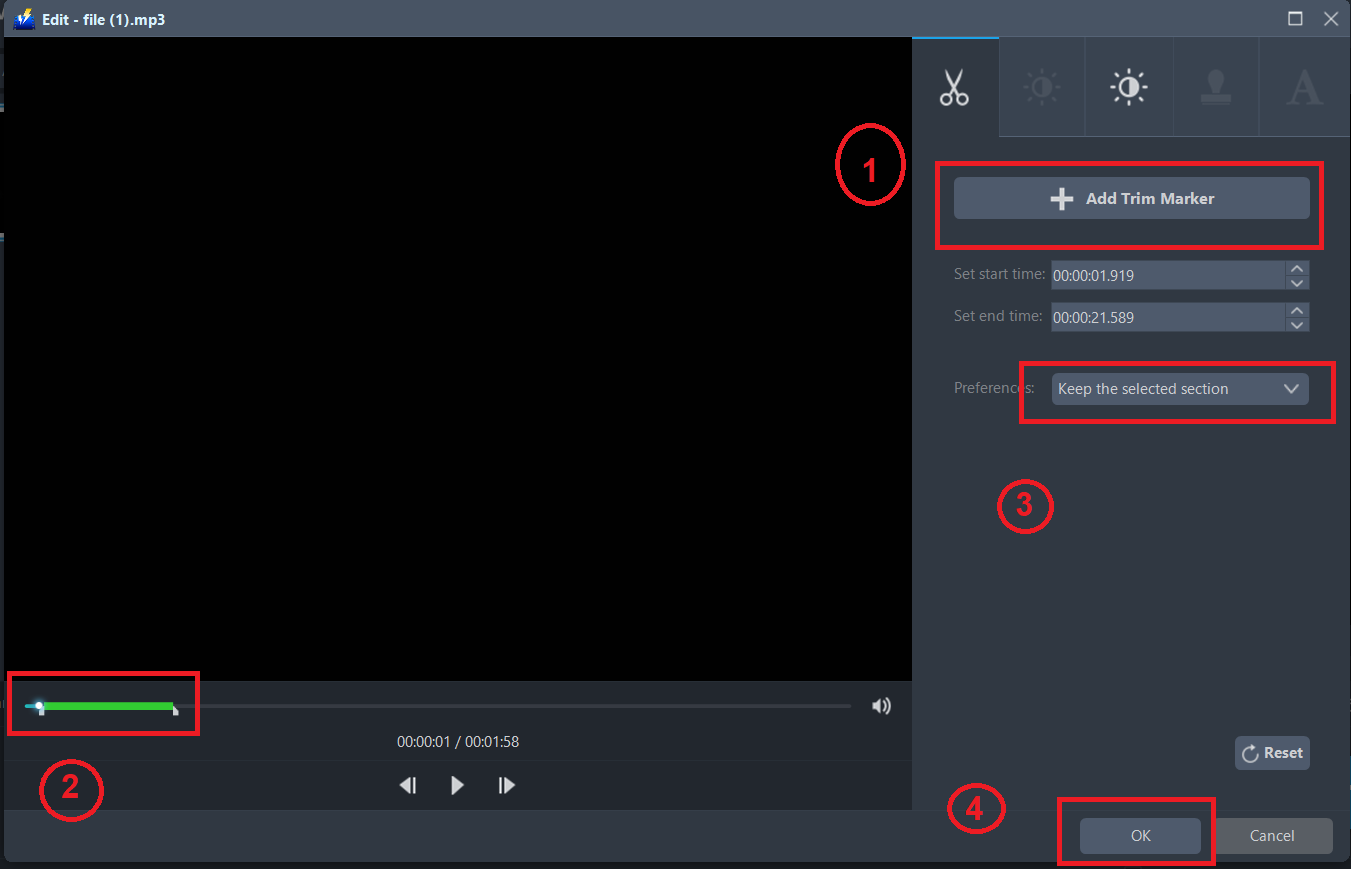
The built-in editor will pop up. Here you can make changes to the audio – trim, cut, etc.
For example, you can trim your audio as shown below:
1) Click “Add Trim Marker”.
2) Drag the mark as shown below to select the part you want to cut. If you want to select multi-sections, please repeat 1 and 2.
3) Choose “Keep the selected section” or “Delete the selected section” from “Preferences”.
4) Click “OK” to save the setting.
Step 3: Convert MP3 to WAV format
3.1 Set the output format.
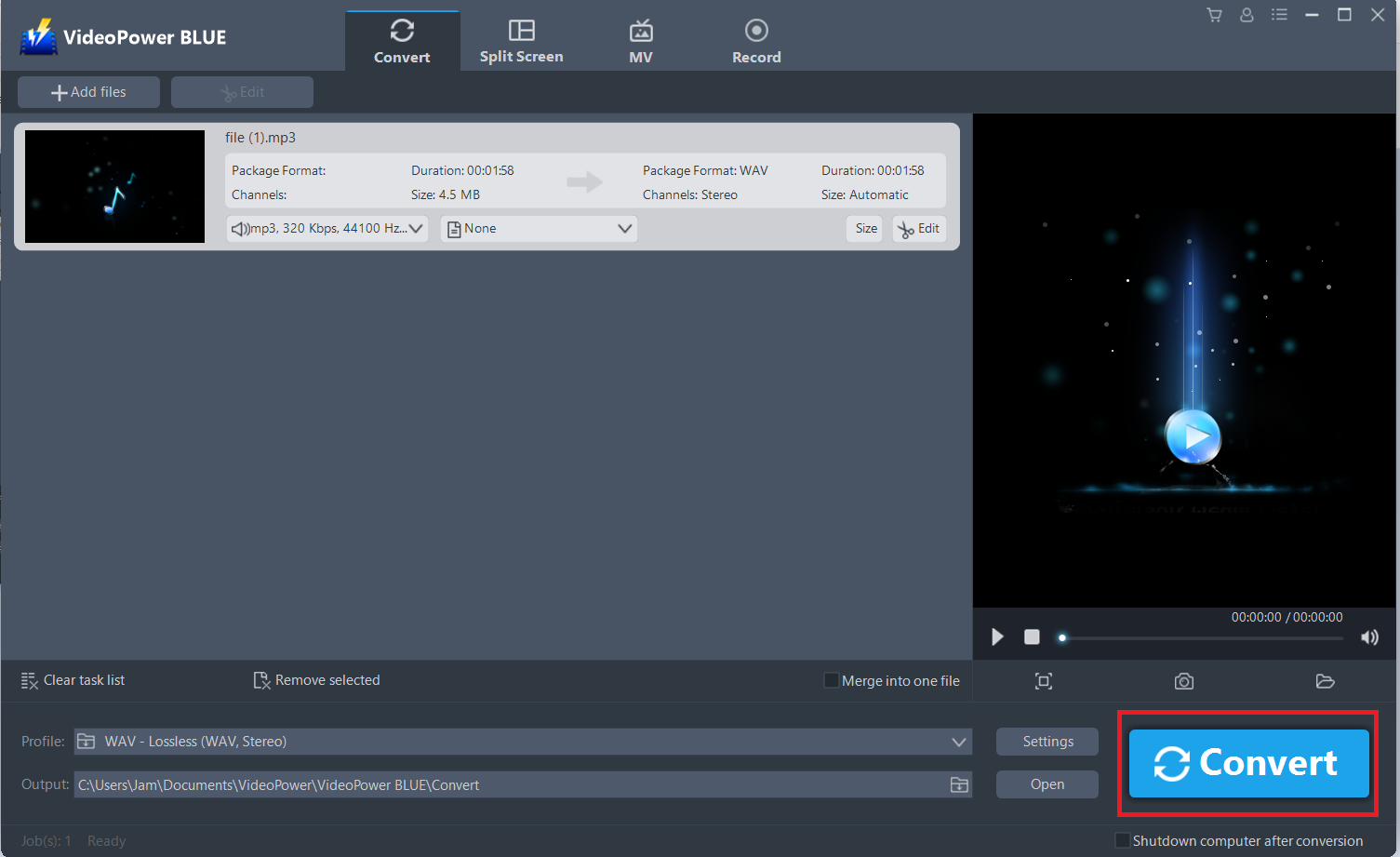
Click to open the “Profile” drop-down menu, then choose the format you want from the profile list. Here choose “Audio”, “WAV”, and quality “Lossless.”

3.2 Start Conversion
Return to the file list.
Click the “Convert” button, then the converted WAV file will be saved in the default output folder.
3.3 Find the Converted WAV files
The program will pop up a window to inform you once the conversion is completed. Click “OK” to open the folder of your saved converted WAV files.

Or you can click the “Open” button to find the WAV video.

Conclusion:
Saving space on your hard disk might be necessary for you or you’d like to listen to your favorite music on your iPod or Mac, whatever the reason is, it’s better to convert WAV files to the MP3 format.
The best way to do that is with VideoPower BLUE. It’s fast and flexible with a built-in video editor that will enable you to edit slideshows or videos, apply watermarks, effects, and other basic video editing options such as trimming or cropping. Moreover, it has a split-screen tool for your photos and videos and a screen recorder which allows you to capture any on-screen activity on your computer.


