





Tips Index
First, let’s get some basic knowledge about MOV.
MOV is a QuickTime movie format, which is an audio and video file format developed by Apple to store commonly used digital media.
MOV is also a common streaming video format. This file format is often used over WMV and RM and can be supported by numerous multimedia editing and video processing software. Thus, it is a very good choice to save movies in MOV format.
In this article, we will focus on converting MP4 file to an MOV format using a VideoPower BLUE. This is a powerful MP4 to MOV Converter that has multiple functions and features including download, record, music, edit, and convert.
Get this software now and convert the OGG file to a more usable format.
You can try to use the software for free by downloading its trial version below.
Step 1: Add the MP4 file to VideoPower BLUE
Run the program if you have installed the converter successfully on your PC.
You can directly import the MP4 files to the program for conversion. Click the “Add files” button to select files from your PC, or directly drag-and-drop the MP4 files to the interface.

Step 2: Edit the MP4.
Click the “Edit” button at the right side of the added Audiobook file to enter the Edit window so you can do some changes to your Video.

Step 3: Convert MP4 to MOV
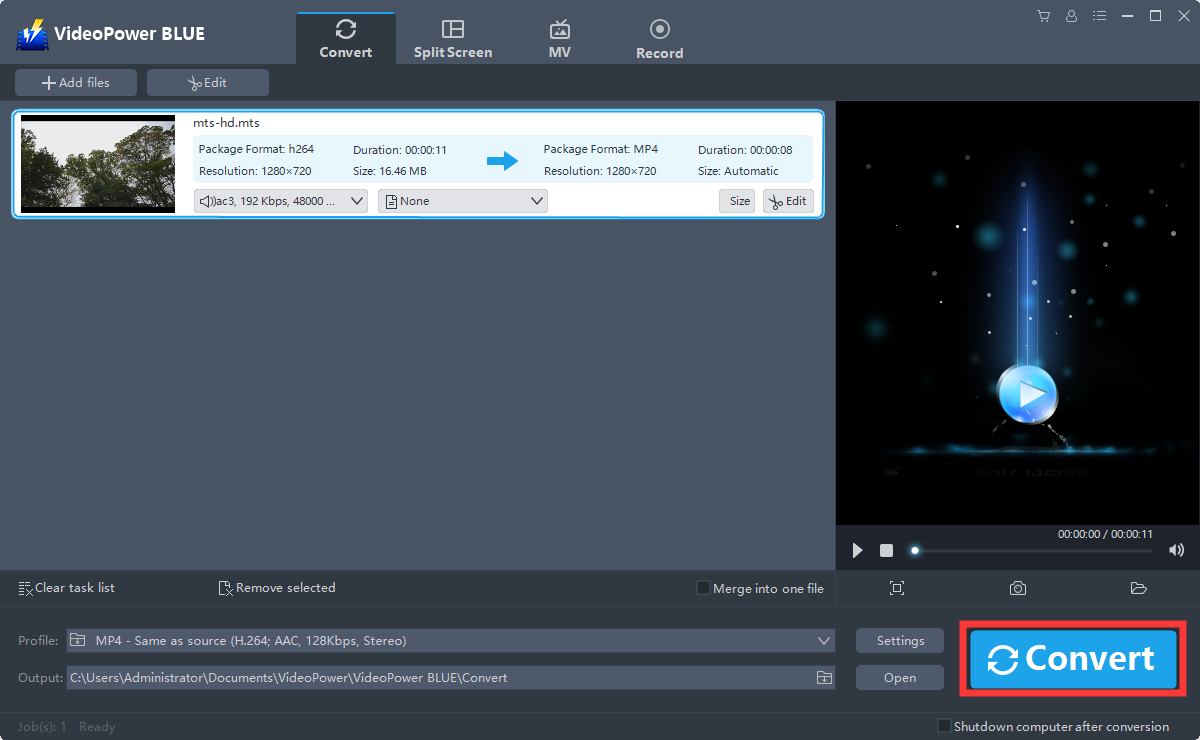
Before conversion, you should set the output format and folder first as the default output format is MP4.
1 ) Click the “Profile” bar
2 ) Choose “Video”.
3 )Set the format to “MOV – Same as Source”.

Set a location to save the converted files. Click the “Output” icon and choose a destination as you like.

Now click the big blue “Convert” button to start the conversion process.
A pop-up window from the program will appear informing you that the conversion is complete.
Click “OK” to open the folder of your saved converted MP3 files.

Conclusion:
Not only does VideoPower BLUE work as MP4 to MOV converter but it also handles the conversion for other media files as well. Additional features are video editing (adjust the brightness, volume, add watermark, subtitle, etc), video merging and adding of subtitles and audio files. The user-friendly utility offers the function like screen recorder and split-screen videos or making a video collage.


