





Tips Index
“I downloaded a music video in a WMV format from the Internet, however, I want to listen to it and add it to my music library as an audio file. How should I do it?”
Do you have the same problem as the above user?
This article will focus on converting WMV to MP3 – a process wherein the audio can be extracted. To do this, you would need both an audio and video converter. Luckily, VideoPower BLUE can do both.
Using VideoPower BLUE assures that smooth and easy conversion. It has a user-friendly and satisfactory interface and fast conversion speed while preserving original quality and that is the reason why it is popular with users.
You can download the free trial version of this software with the link below and follow the simple guide to convert your WMV file to MP3 format.
Step 1: Add the WMV file to the program
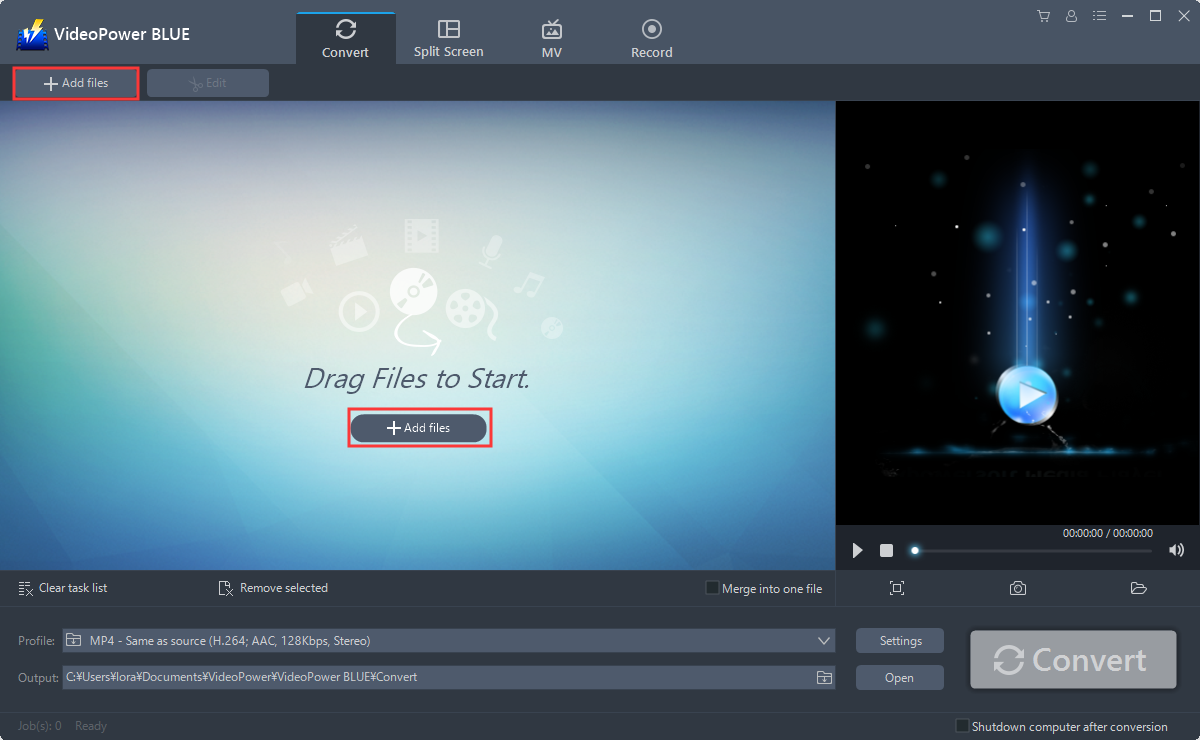
Run the program if you have installed the Video Converter software – VideoPower BLUE successfully on your PC. You can directly import the file to the program by clicking the “Add files” button or by drag-and-drop to the interface.
Step 2: Edit the WMV video file.
2.1 Open Editor
If you need to edit the file before conversion, follow the instructions below.
The imported file is displayed in the list. Click the “Edit” button on the right side of the file.

2.2 Edit video
The built-in editor will pop up. Here you can make changes to the audio file – trim, cut, etc.
For example, you can trim your file as shown below:
1) Click “Add Trim Marker”.
2) Drag the mark as shown below to select the part you want to cut. If you want to select multi-sections, please repeat 1 and 2.
3) Choose “Keep the selected section” or “Delete the selected section” from “Preferences”.
4) Click “OK” to save the setting.

Step 3: Convert WMV to MP3
3.1 Set the output format
1) Click to open the “Profile” drop-down menu, then choose the format you want from the profile list.
2) Choose “Audio” then “MP3.”
3) Click quality “High”, “Medium”, or “Low.”

3.2 Start Conversion
Return to the file list.
Click the “Convert” button, then the converted MP3 file will be saved in the default output folder.

You can also customize “Audio codec”, “Sample rate (Hz)”, “Channels”, “Bitrate (Kbps).” Just click the “Settings” button to enter the “Preset editor” window, then you can change the value and click “OK” to save the settings.

3.3 Find the Converted MP3 files
You can click the “Open” button to find the MP3 file.

Conclusion:
People who still want to enjoy the audio in the WMV video using their gadgets should extract MP3 audio from their WMV video using VideoPower BLUE.
This is a wonderful software that has far advanced features compared to other means of video conversion. <a style=”color: blue;” href=”/products/videopower-blue”>VideoPower BLUE</a>, a powerful converter that supports many video formats with video editing function, enables adding subtitles, apply watermarks, make MV and split-screen videos.


