





Tips Index
It’s the portable years where everything can be brought in any size of palms there is! Do you want to take a photo? No need to bring digital cameras, you have your smartphone. Do you want to search the web? Better ditch the personal computer, it’s too big, use your iPhone instead. Do you want to listen to your favorite song? Definitely your phone can store thousands of music from different genres.
And you want to watch a movie but you don’t like small screens. There goes Apple in producing iPad, it isn’t as handy as your iPhone but it works like one. iPad usage is greatly demanded by students who don’t want to bring heavy textbooks every day to school since they can store up to thousands of it on iPad.
The large screen of the iPad makes it reader more comfortable in skimming their lessons or just reading stories. People like it Big! Although it is relatively large, the entertainment when watching movies and clips is a lot of fun than your usual iPhones. Plus!
It can run apps like artistic drawing, PowerPoint presentations with local control, and many more that could go beyond your leisure time and school.
VideoPower BLUE is a versatile software that could convert any type of clips and songs into any format that could be playable on your device plus it has additional options for a specific device so you won’t have the hassle to figure out what format would be compatible for your device and not just Apple products but almost a complete array of smartphones and android devices from Samsung to LG.
You can try to use the software to convert video or audio to your iPad compatible format.
Step 1: Add the Video file to VideoPower BLUE
You can directly import any video file to the program by clicking the “Add files” button or by drag-and-drop the file to the interface.

Step 2: Edit file before conversion
To edit the video file before conversion, follow the instructions below. However, if users do not wish to edit the video, skip this step, and go directly to Step 3.
2.1 Open the editor
The imported file is displayed on the list.
Click the “Edit” button on the right side of the file.
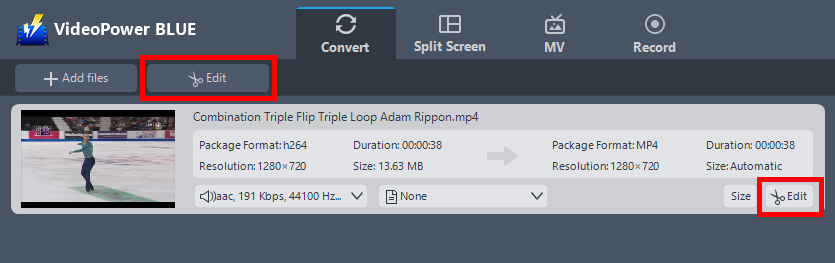
2.2 Edit the video
The built-in video editor will open, with its help you can make adjustments on speed and volume, you can also trim, cut, crop, rotate or flip videos. Add effects, subtitles, and watermark while adjusting brightness, contrast, and saturation that will make editing conveniently easier.
For example, you can trim your video as shown below:
1.) Click “Add Trim Marker”.
2.) Drag the mark as shown below to select the part you want to cut.
If you want to select multi-sections, please repeat 1 and 2.
3.) Choose “Keep the selected section” or “Delete the selected section” from “Preferences”.
4.) Click “OK” to save the setting

Step 3: Convert your video into an Apple iPad format
3.1 Set the output format
1) Click to open the “Profile” drop-down menu, then choose the format you want from the profile list.
2) Here you can click “Device” then click “Apple”.
3) You may now choose the specific model of your iPad compatible format.

3.2 Start Conversion
Return to the file list.
Click the “Convert” button, then the converted file will be saved in the default output folder.

3.3 Find the Converted file
The program will pop up a window to inform you once the conversion is completed. Click “OK” to open the folder of your saved converted videos for iPad files.

Conclusion:
Today there is a vast selection of phones from macOS to Android and even Windows that have been playing the industry. Each device has its own compatibility issue and definitely should play your videos without any hassle at all.
VideoPower BLUE on not just the best video converter but also the best multi-tasking media software there is that could edit your videos with multiple themes available.
It even ha a split-screen feature where you can create multiple videos in one frame that is very useful and finally, it records your screen for videos you think you are unable to access or at least just for project purposes. Try it now!


