





Tips Index
I believe all iPhone users know well the fact that Apple won’t let them just use any song as a ringtone. MP3, for example, is the most common format but is not excluded from this issue. It can be even more problematic if users want to use a particular song as a ringtone – the format supported for these are exclusively M4Rs.
M4R is the only ringtone file format used by Apple devices. If you have many MP3 songs and want to use them as your ringtone from time to time, then you have to find a way to convert MP3 to M4R ringtone format.
In this article, you will be covered by an awesome MP3 to M4R Converter. It allows you to change the format from one to another, including videos and audio. In addition, the software has other amazing features like MV making, screen splitting, and screen recording.
VideoPower BLUE is the most comprehensive video editing software. Many functions such as video and screen recording, music conversion, cut and editing, video collage, slideshow creation, etc. are integrated. While it features a fairly powerful and versatile interface that offers the user a variety of objects and effects, it’s still simple and pleasant to practice with. It offers a simple drag-and-drop interface and easy-to-follow instructions. It is professional quality in terms of its capacity and its range of functionalities.
Step 1: Add MP3 files to VideoPower BLUE
After you have installed the software on your computer, it will launch automatically.
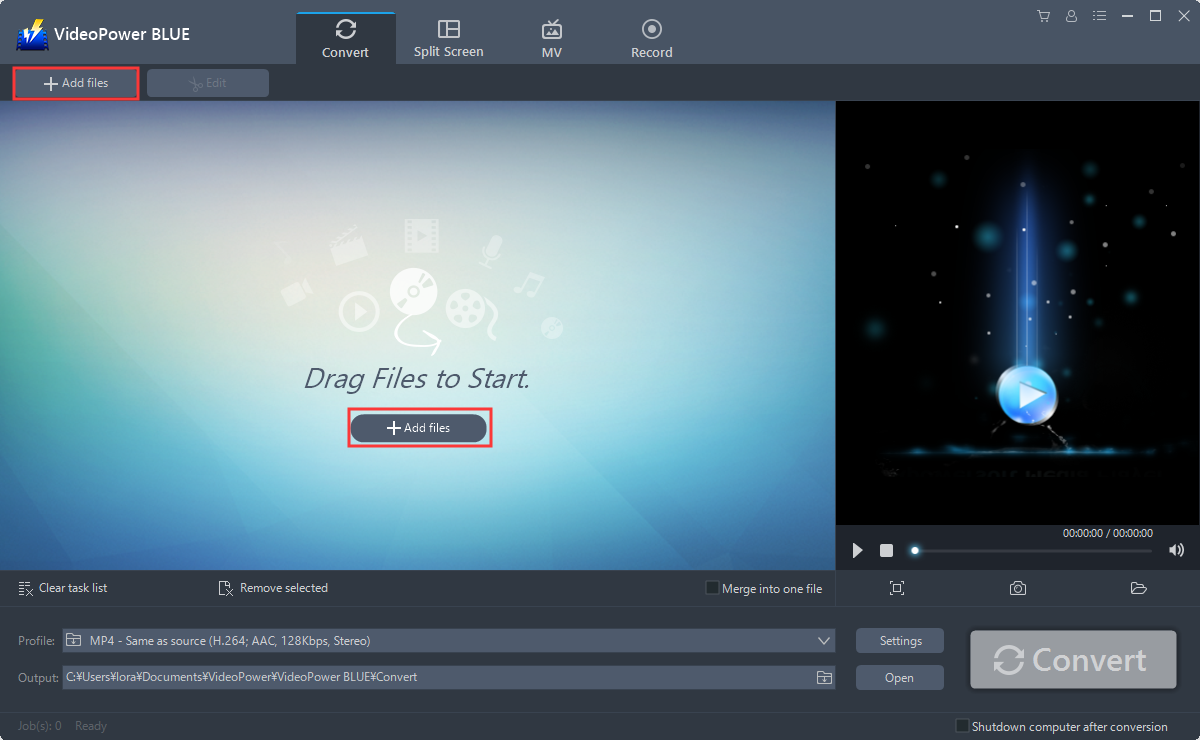
You can directly import the MP3 file to the program for conversion. Click the “Add files” button or drag and drop files from the local drive into the interface directly.
Step 2: Edit the MP3 file
If you need to edit the video file before conversion, follow the instructions below.
The imported file is displayed in the list. Click the “Edit” button on the right side of the file.
The built-in editor will pop up where you can adjust speed and volume, trim, cut audios to make that perfect M4R ringtone.

Step 3. Convert MP3 to M4R
3.1 Output Format
You should change the output format first as the default output format is MP4.
1) Click the “Profile” bar
2) Choose “Audio”.
3) Set the format to “M4R – High”.

3.2Convert the File
When the editing is done and the file is ready for conversion, click the “Convert” button to convert the file to M4R format.

3.3 Conversion Complete
A pop-up window from the program will appear informing you that the conversion is complete.
Click “OK” to open the folder of your saved converted M4R files.

Conclusion:
There are lots of online converters that offer MP3 to M4R conversion. The problem is that conversion speed is easily affected by the network status when using popular online converters. Using VideoPower BLUE assures that smooth and easy conversion.
It has a user-friendly and satisfactory interface and fast conversion speed while preserving original quality and that is the reason why it is popular with users.
VideoPower BLUE has a video editor tool, split-screen feature for your photos and videos and a screen recorder that allows you to capture any on-screen activity on your computer.


