





Tips Index
Digital technologies and applications are now part of humans’ daily activities most especially in work and studies. Users often have the need for capturing photos and recording screen or webcam activities and most importantly recording system sound and microphone sound in their windows because of different reasons and purposes.
As users capture or record the activities on their screen to post online, share with their classmates, friends, and colleagues for a tutorial, safeguarding information purposes and etc. Some of the times users also need to include microphone sound sources to add impact and clarity to their recorded file.
In addition, users also have the need of recording radios and self voice to keep for later listening, to include with other files or to directly post online for some varied purposes.
In line with these, users need to use a third-party tool to make these things possible. Thus, VideoPower YELLOW, an amazing, trusted and hassle-free audio recorder application software would be easy to use and best suited in recording microphone sound on windows 10, 8 and 7.
Steps
Before recording, you can choose your “audio source” to “System Sound, Microphone, or System Sound and Microphone”

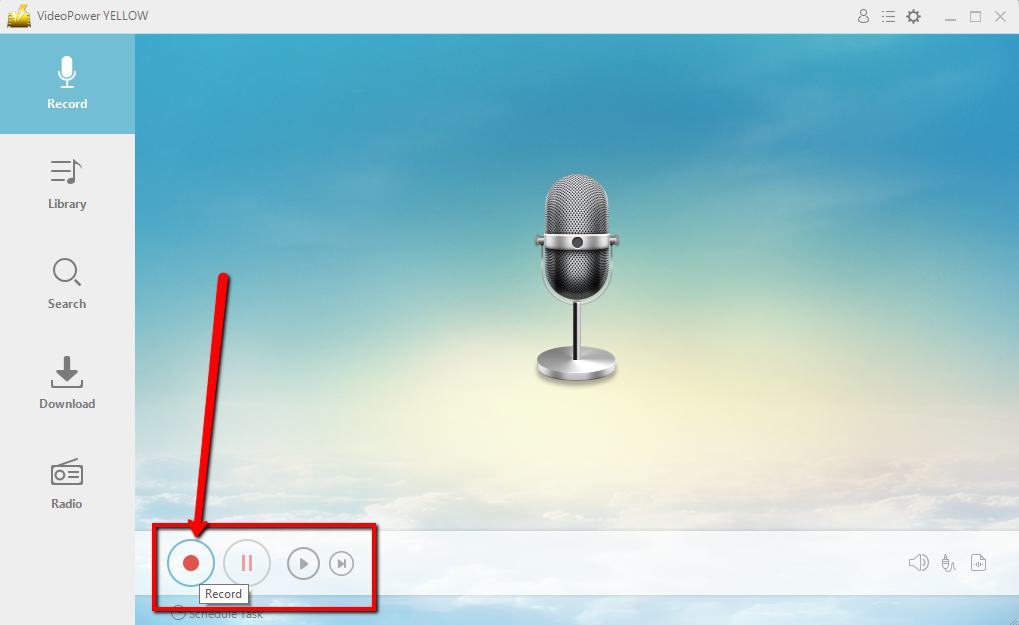
Click the start recording button at the bottom left of the screen. Click the same button to stop.
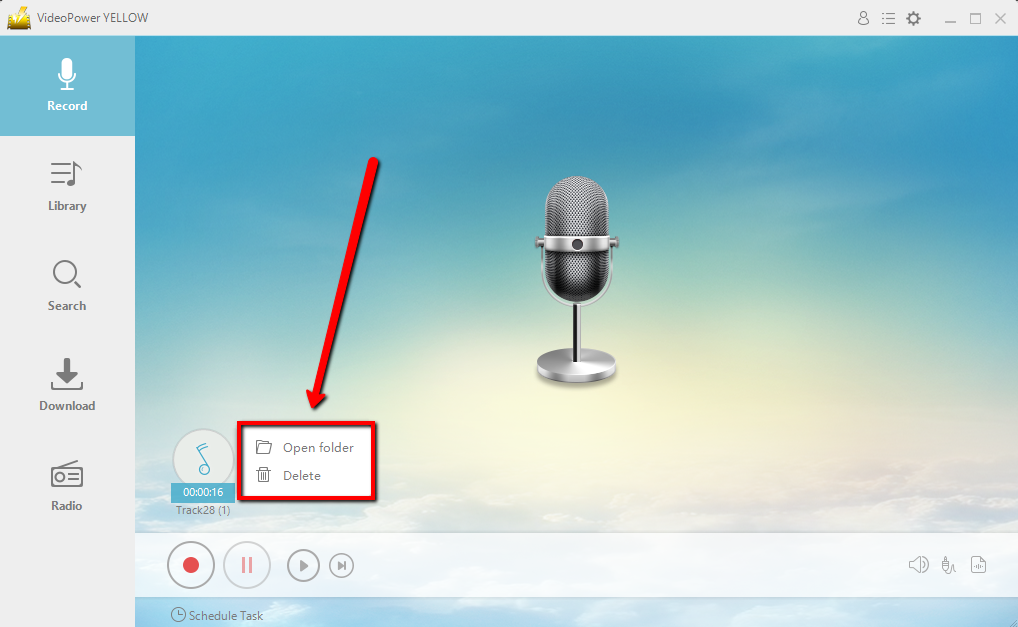
After recording, right-click the recorded track icon and click “Open folder” to open the storage location of the recorded audio file.
Conclusion:
VideoPower YELLOW provides the easiest way to Record Microphone sound on Windows 10/8/7. This is the most powerful and stable software that offers more than just recording.
It also supports converting music, ripping or burning of music to a CD, and can download music easily.
This is a great tool where you can enjoy your music life spontaneously. What are you waiting for? Don’t delay any longer and download VideoPower YELLOW to experience its full features now!


