





Tips Index
AVI (Audio Video Interleave) is a multimedia container format launched by Microsoft as part of its Windows video software. AVI files contain audio (voice) and video (image) data in a file container, allowing simultaneous playback of audio and video. Similar to DVD video format, AVI files support multiple audio and video streams. AVI information is mainly used in multimedia CD-ROM to save various image information such as TV, film and so on.
However, WebM is a popular video file format widely used in web videos for its small size and easy to spread features. If you plan on uploading videos on the internet, it’s good to consider doing it in WebM format. But you need first to convert AVI to WebM.
VideoPower BLUE is a powerful tool that can do a lot of things. It can record activity on your computer’s screen, edit videos, and convert video and audio files. This software can convert AVI to WebM.
Get this software now and convert AVI to WebM to a more usable format.
Step 1: Add the AVI to VideoPower BLUE
Run the program if you have installed the converter successfully on your PC.
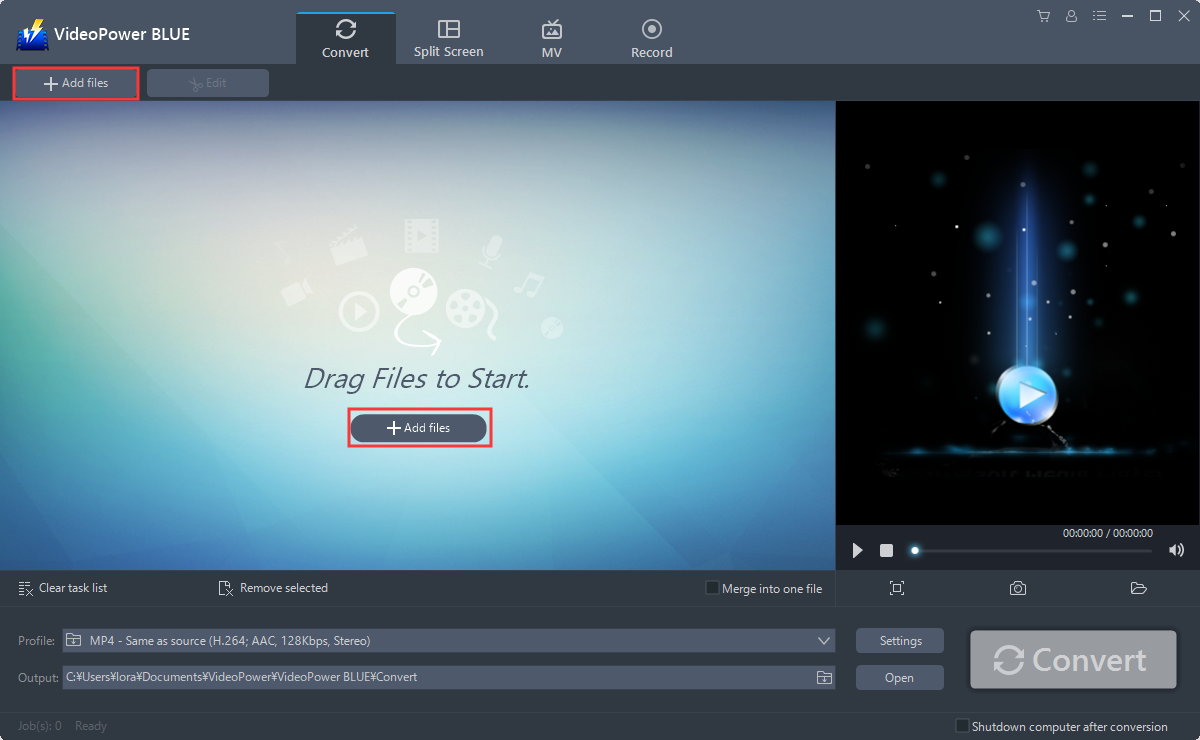
You can directly import the AVI files to the program for conversion. Click the “Add files” button to select files from your PC, or directly drag-and-drop the files to the interface.
Step 2: Edit the AVI
If you want to edit the file first before converting, just follow the instructions below.
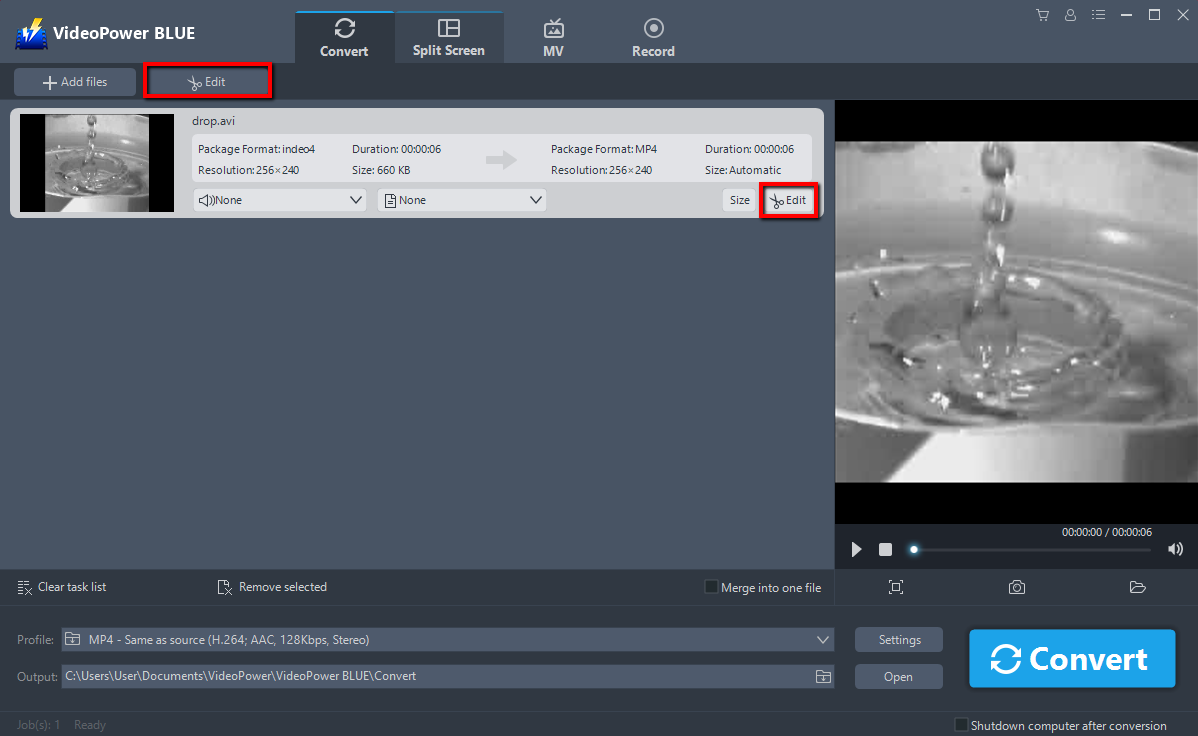
Click the “Edit” button at the right side of the added AVI file to enter the Edit window so you can do some changes to your Video.
Step 3: Convert AVI to WebM
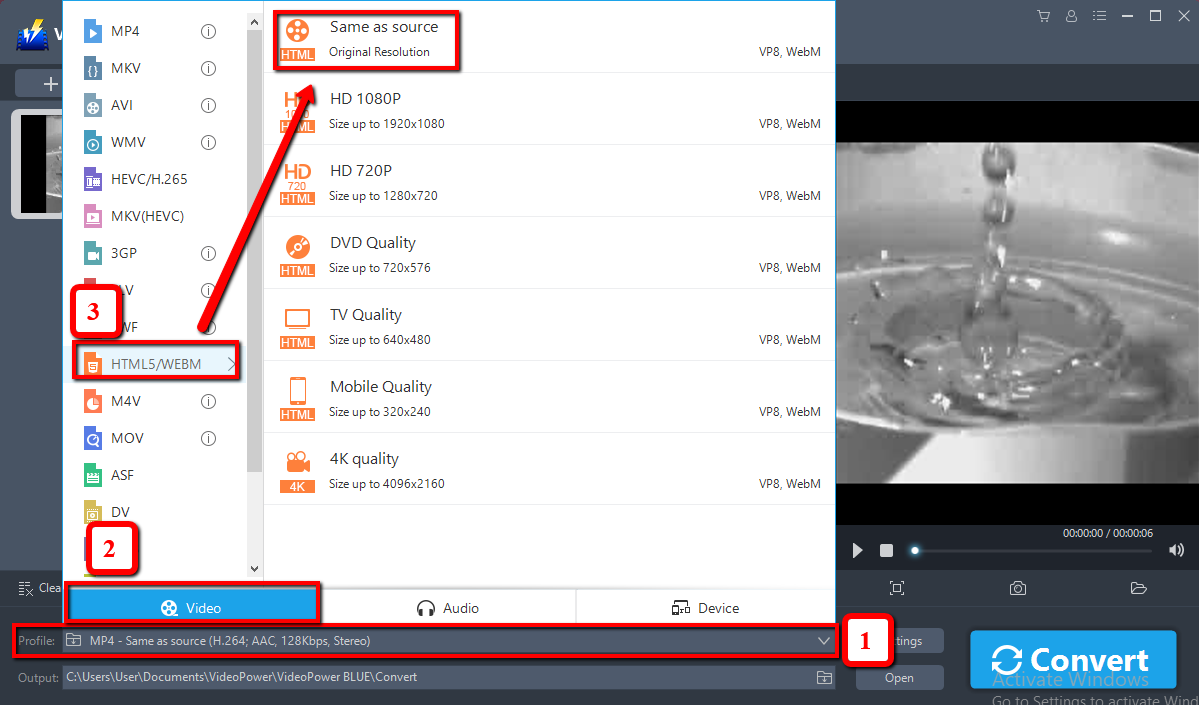
Before conversion, you should set the output format and folder first as the default output format is MP4.
1) Click the “Profile” bar
2) Choose “Video”.
3) Set the format to “WebM – Same Source”.
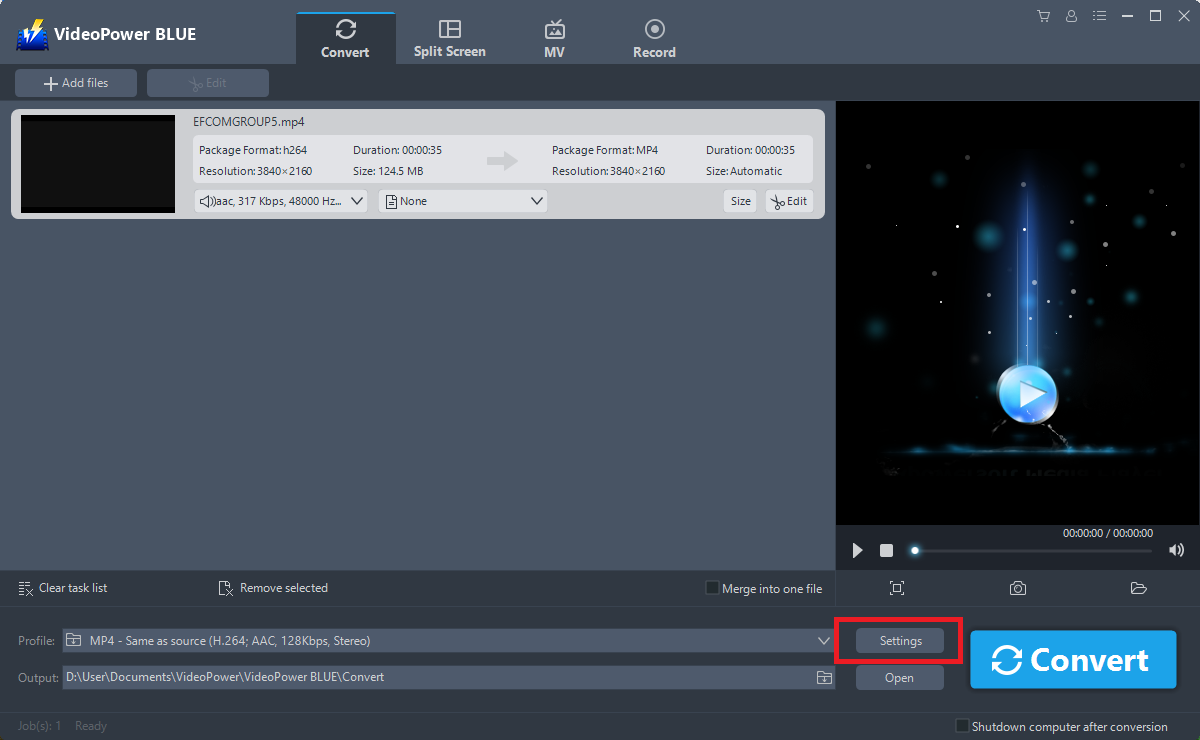
You can also customize frame rate, bitrate, codec, etc. manually. Just click the “Settings” button to enter the “Preset editor” window, then you can change the value and click “OK” to save the settings.
Set a storage location to save the converted files. Click the “Output” icon and choose a destination as you like.
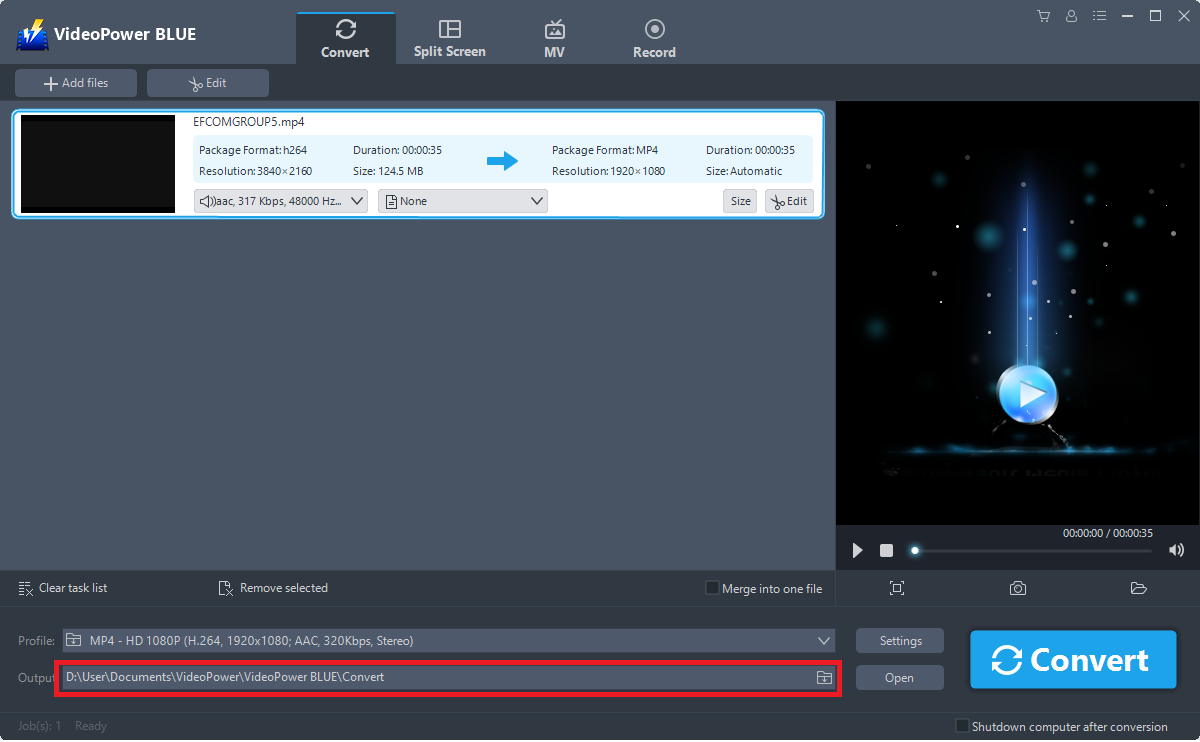
Now click the big blue “Convert” button to start the conversion process.

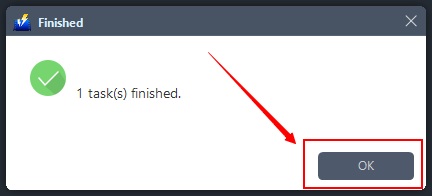
A pop-up window from the program will appear informing you that the conversion is complete.
Click “OK” to open the folder of your saved converted AVI files.
Conclusion:
VideoPower BLUE is one of the top converters, allowing you to convert any media file into other formats or devices. The intuitive user interface and well-organized functionalities make it easy-to-use for first-time users or even computer illiterates. The merging mode is also helpful when you have hundreds and thousands of files for converting.
It’s fast and flexible with a built-in video editor that will enable you to merge multiple videos into one single file. This software will allow you to edit slideshows or videos, apply watermarks, effects, and other basic video editing options such as trimming or cropping.


